


 Social Wall
 Feed Analytics


Would you like to choose whether your Smash Balloon plugins share usage data with us?
In this guide, we’ll explain what data sharing is. We’ll also show where to turn it on or off in the free Facebook Feed, Instagram Feed, TikTok Feeds and YouTube Feed plugins. Then we’ll cover the data sharing popup, the weekly usage report and what changes in the paid versions.
Note: This guide uses the free Feeds for YouTube plugin as its example. The other free plugins show the same settings.
- What Is Data Sharing?
- Choosing in the Setup Wizard
- Changing Your Choice in Settings
- The Data Sharing Popup
- The Weekly Usage Report
- Data Sharing in the Paid Versions
- Frequently Asked Questions
What Is Data Sharing?
Data sharing lets your Smash Balloon plugins send us limited, non-sensitive usage data. We use it to keep your plugins updated and to improve our products. We never collect your feed content or your visitors’ personal information.
For the full list of what is and isn’t collected, see our Data Sharing Permissions page.
In the free plugins, data sharing is off by default. Nothing is shared until you choose to turn it on.
The plugins have 2 related settings.
| Setting | What it does |
|---|---|
| Data sharing | Lets the plugin share limited, non-sensitive usage data with Smash Balloon. |
| In-Plugin Notifications | Shows you notifications inside the plugin about updates, fixes and new features. |
The 2 settings are linked. Turning data sharing on also turns in-plugin notifications on. You can use in-plugin notifications on their own, with data sharing off.
Your choice applies to your whole site. It isn’t saved for each plugin separately. For example, if you turn data sharing on in one free Smash Balloon plugin, it’s on for the others too.
Next, we’ll look at where you make this choice, starting with the setup wizard.
Choosing in the Setup Wizard
The first time you set up Feeds for YouTube, Facebook Feed or Instagram Feed, you can make your choice in the setup wizard. In Feeds for YouTube, look for the Help Improve Feeds for YouTube checkbox on the last screen, Awesome. You are all set up! Facebook Feed and Instagram Feed show the same checkbox, labeled Help Improve Smash Balloon plugins.
The box is unchecked by default, because data sharing is opt-in.
To share usage data, check the box. In Feeds for YouTube and Facebook Feed, your choice is saved as soon as you check it. In Instagram Feed, it’s saved when you finish the wizard.
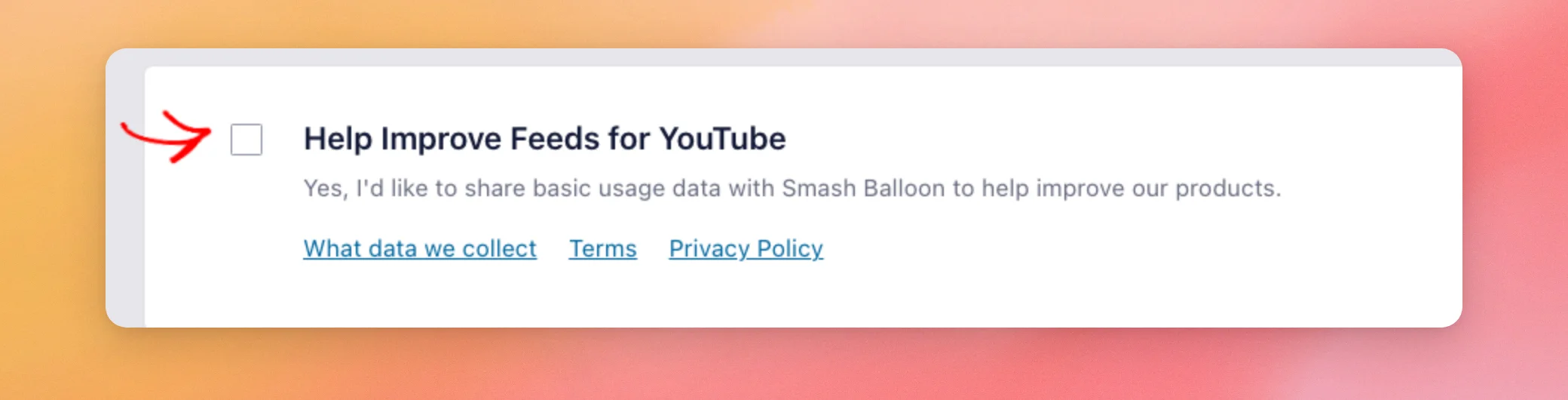
To keep data sharing off, leave the box unchecked. Leaving it unchecked doesn’t save a choice. The popup described below can still ask you later. Once you check the box, the popup won’t ask you again.
You won’t see this checkbox if a paid Smash Balloon plugin is active on your site.
If you skip the wizard or want to change your choice later, you can do that in each plugin’s settings, which we’ll cover next.
Changing Your Choice in Settings
To change your choice at any time, open the Data Sharing tab in each plugin’s Settings page. The table below shows the path for each plugin.
| Plugin | Where to find the tab |
|---|---|
| Feeds for YouTube | YouTube Feed » Settings » Data Sharing |
| Facebook Feed | Facebook Feed » Settings » Data Sharing |
| Instagram Feed | Instagram Feed » Settings » Data Sharing |
| Feeds for TikTok | TikTok Feeds » Settings » Data Sharing |
For example, from your WordPress admin sidebar, go to YouTube Feed » Settings. Then, click the Data Sharing tab.
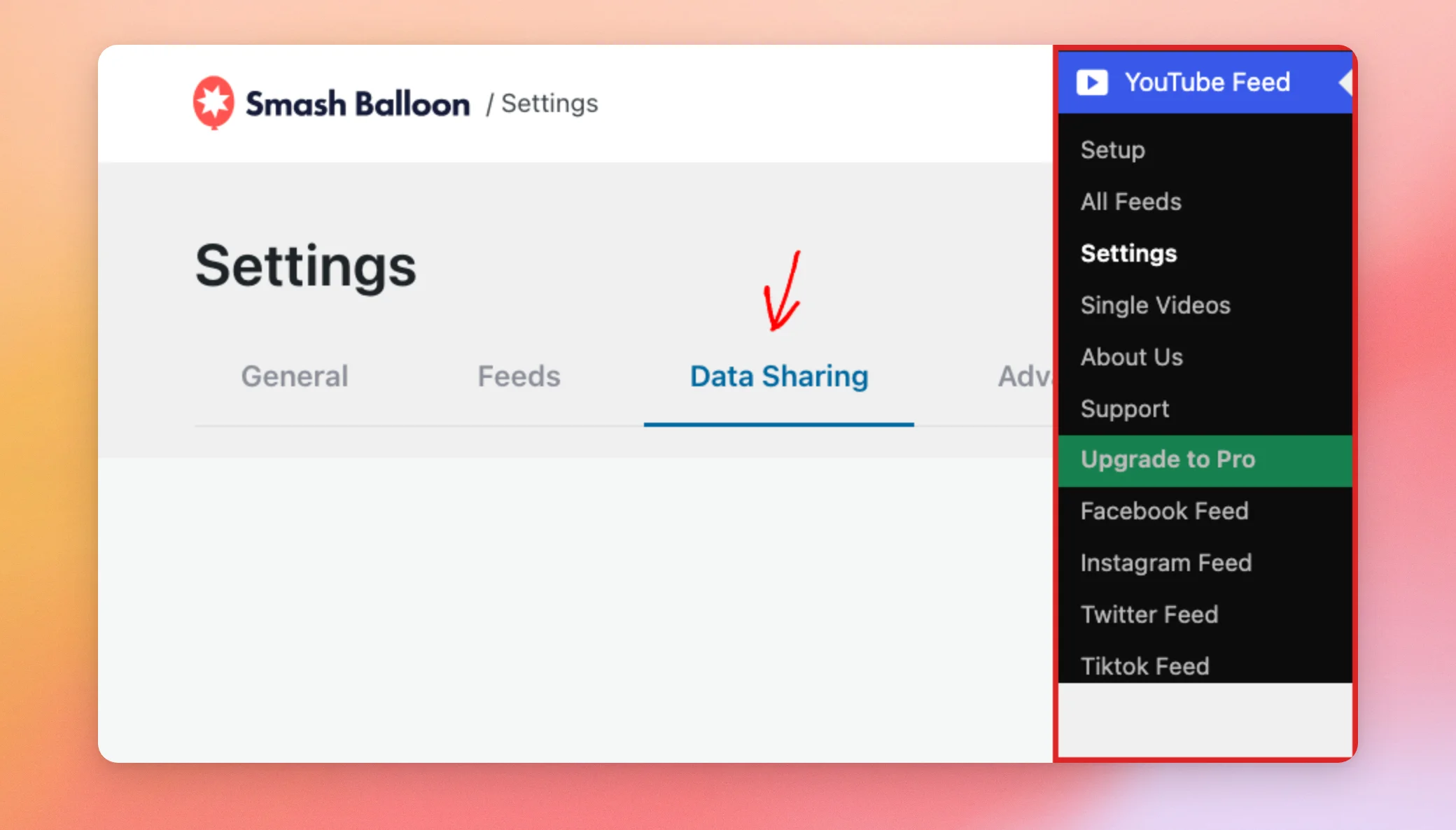
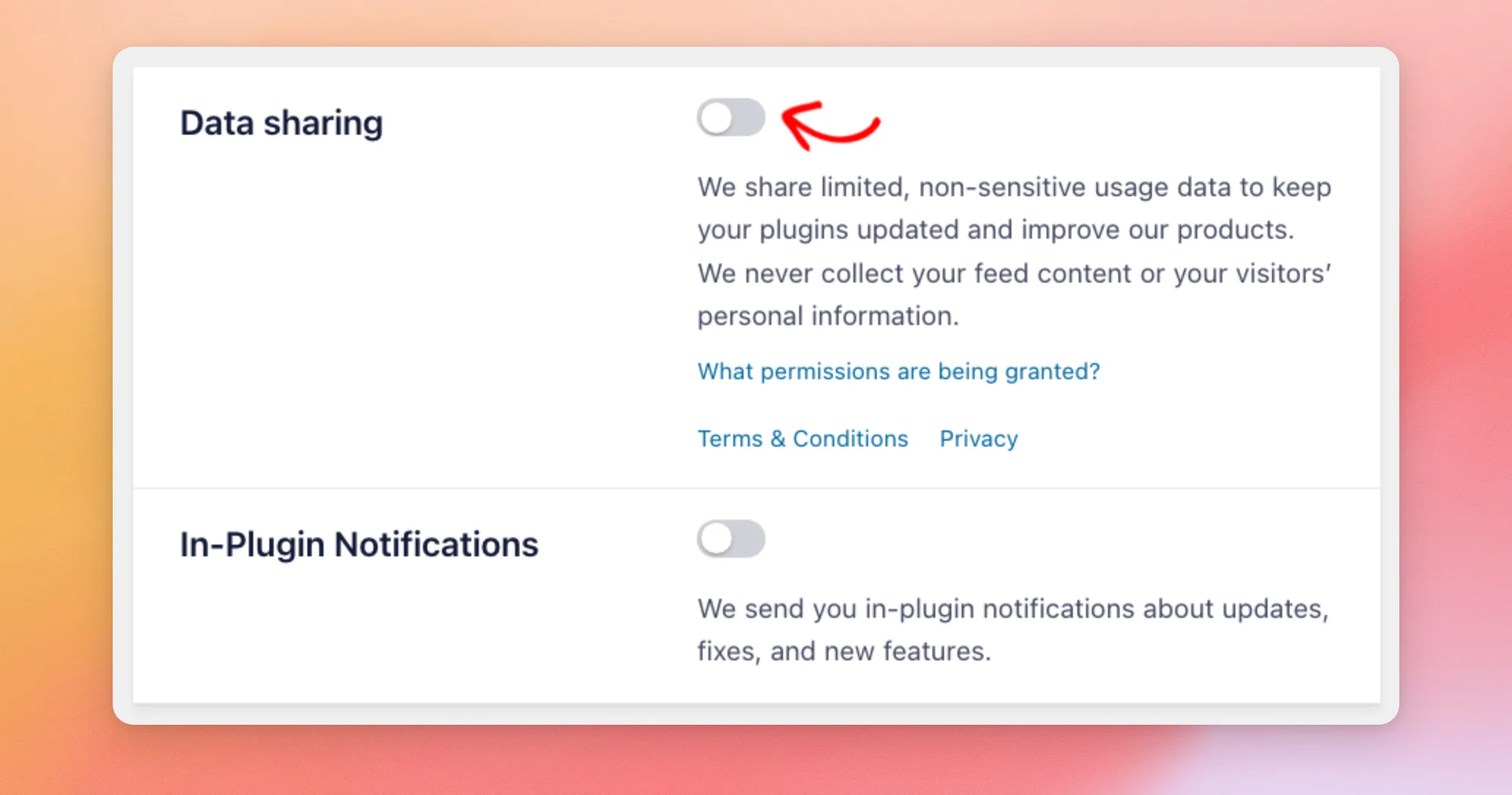
The tab has 2 toggles. First, use the Data sharing toggle to choose whether the plugin shares usage data with us. Under it, you’ll find links to the permissions page, our terms and conditions and our privacy policy.
Next, use the In-Plugin Notifications toggle to choose whether you see notifications from us inside the plugin.
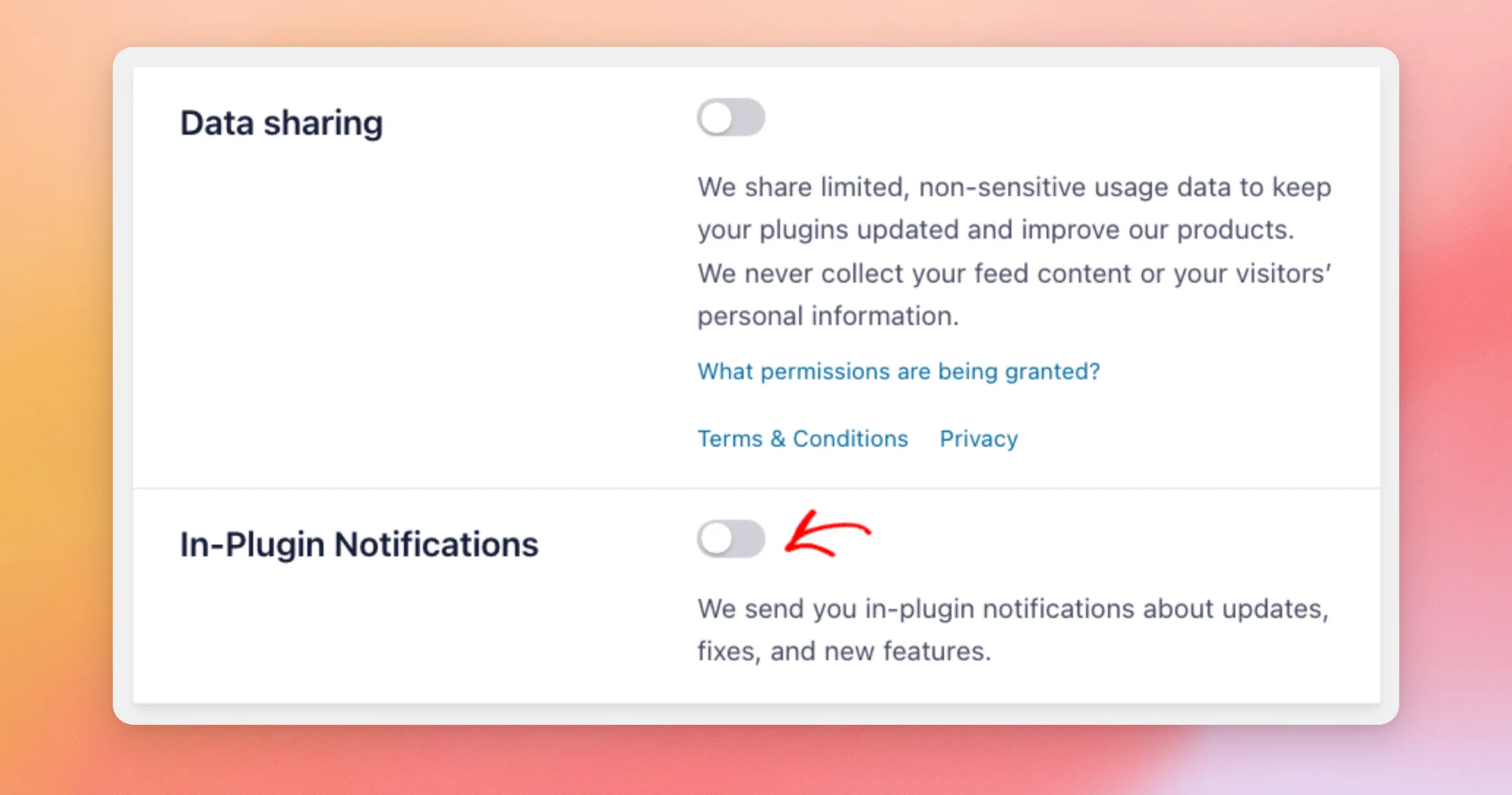
Both toggles are off by default, because data sharing is opt-in. The plugins save your choice in different ways.
- In Feeds for YouTube and Feeds for TikTok, a toggle saves as soon as you switch it.
- In Facebook Feed and Instagram Feed, the choice is saved with the rest of the settings when you save the Settings page.
In all 4 plugins, the In-Plugin Notifications toggle is greyed out while data sharing is on, because the 2 are linked.
While data sharing is off, a free plugin can also ask you with a popup, which we’ll look at next.
The Data Sharing Popup
While data sharing is off, a free plugin can show a popup titled We’re updating how data sharing works. It can appear on your WordPress Dashboard and other admin pages. While the setup wizard is waiting to be completed, the YouTube Feed plugin keeps the popup off its own pages.
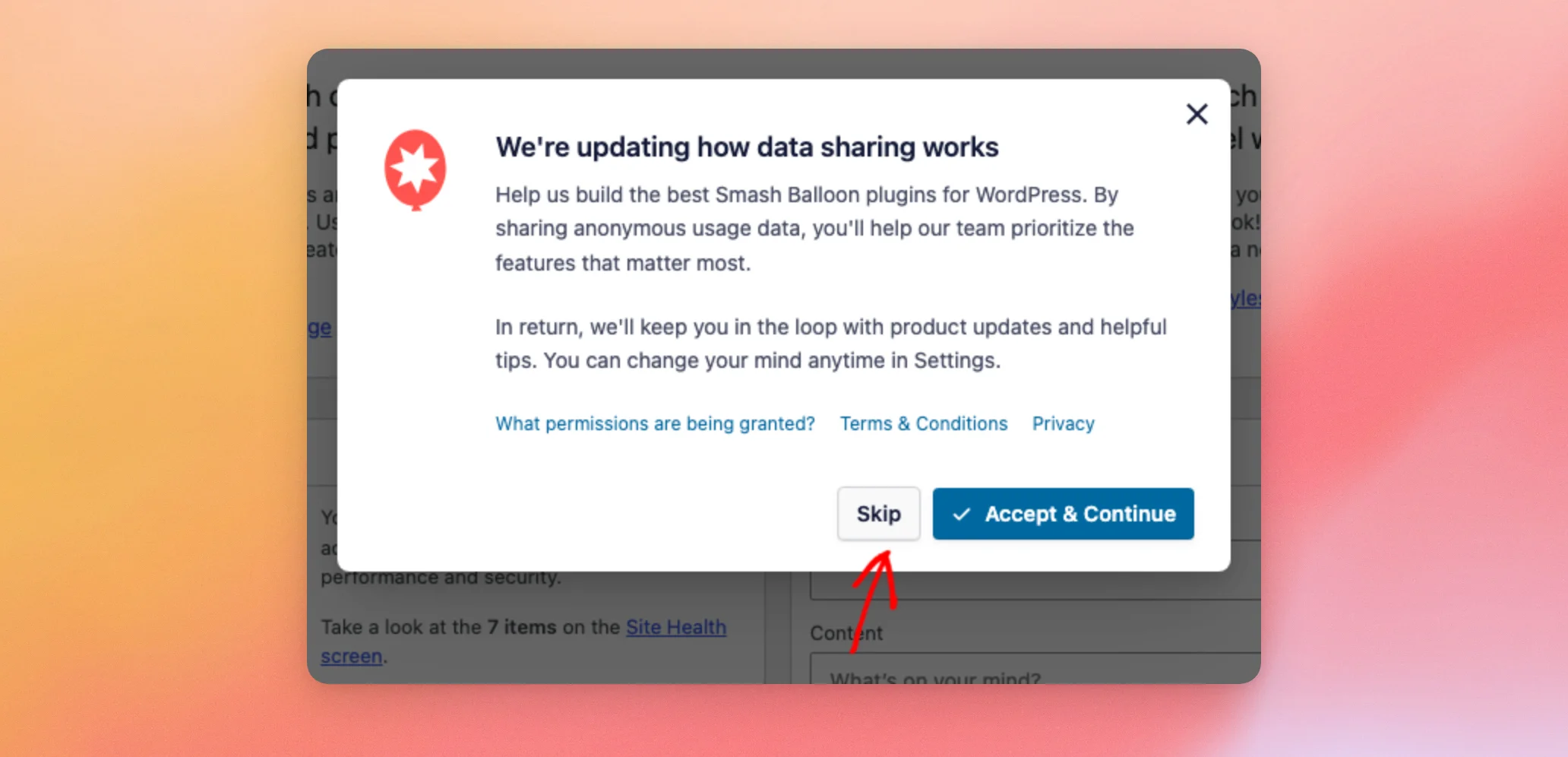
The popup explains what data sharing does and has links to the permissions page, our terms and conditions and our privacy policy. It also has 2 buttons.
- Accept & Continue turns on data sharing and in-plugin notifications.
- Skip turns both off. The close button in the corner and the Esc key do the same as Skip.
Either button closes the popup. It doesn’t come back.
The popup also stays away once data sharing is on. If you click Skip, nothing is shared, and you can still change your choice later on the Data Sharing tab.
Data sharing also affects the weekly usage report, which we’ll look at next.
The Weekly Usage Report
Each plugin also has a Usage Tracking switch on its Advanced tab. It controls the background report that the plugin sends about your settings and site once per week. For example, in Feeds for YouTube, go to YouTube Feed » Settings. Then click the Advanced tab.
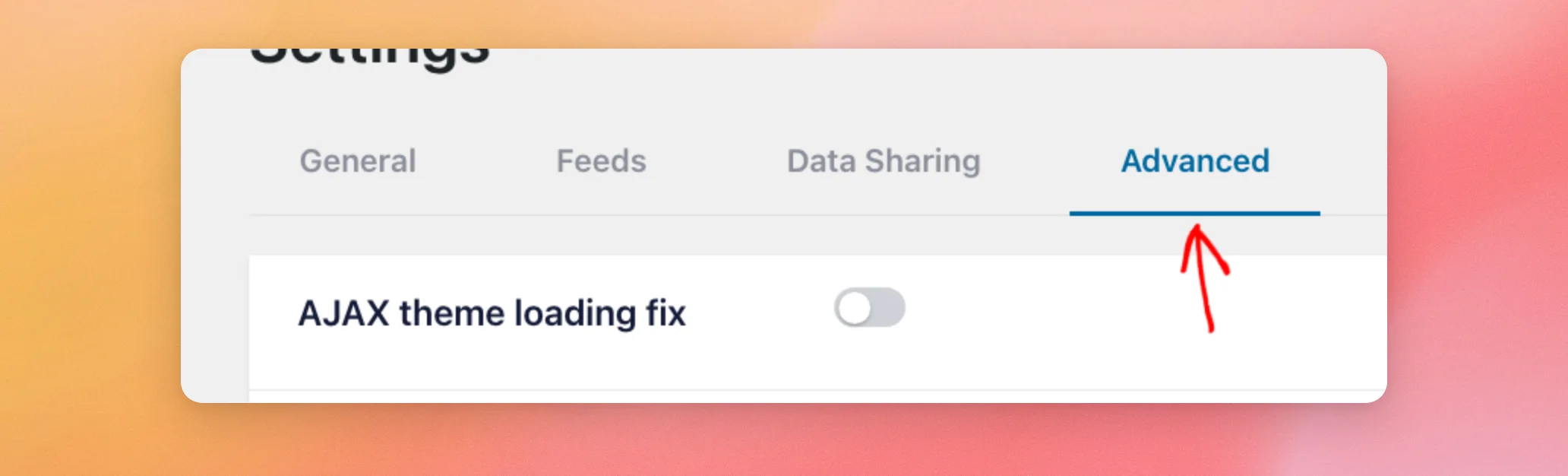
On the Advanced tab, find the Usage Tracking switch.
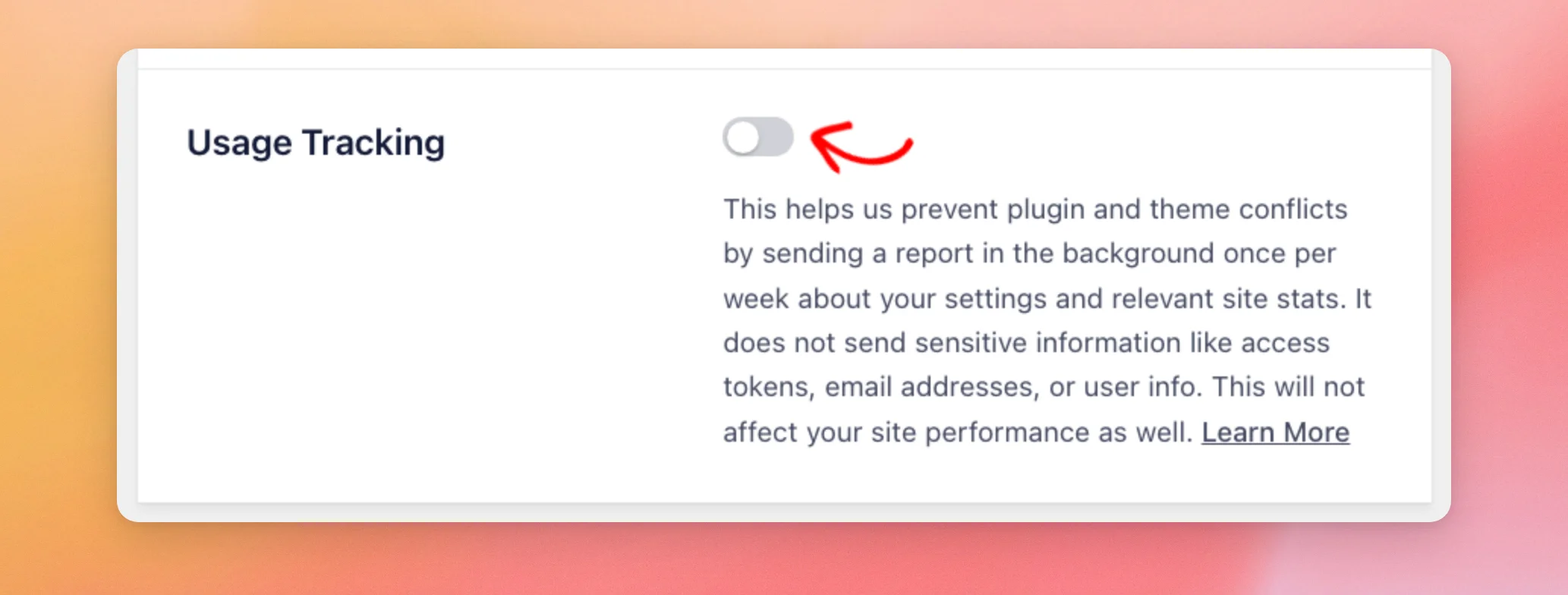
In Feeds for YouTube, the Usage Tracking switch is off by default. The plugin sends no weekly report while data sharing is off. Facebook Feed, Instagram Feed and Feeds for TikTok also send no weekly report while data sharing is off, even with Usage Tracking on.
To allow the report, turn both on. You can turn Usage Tracking off at any time to stop it.
For what the report includes and what it never includes, see our Data Sharing Permissions page.
Finally, we’ll look at how all of this changes when a paid Smash Balloon plugin is active.
Data Sharing in the Paid Versions
The paid versions of our plugins work differently.
- The Data Sharing tab doesn’t appear.
- Data sharing and in-plugin notifications are on while any paid Smash Balloon plugin is active on your site. This includes your free Smash Balloon plugins.
- In Feeds for YouTube, the Settings page has a Data sharing section on the General tab. It describes the limited, anonymised data we collect and has links to what data is collected, our terms and conditions and our privacy policy.
- The Usage Tracking switch stays on the Advanced tab.
If you deactivate every paid Smash Balloon plugin, your free plugins go back to the choice you made before. If you never made one, data sharing is off.
That’s it! You now know how data sharing works in our plugins, where to turn it on or off and what changes in the paid versions. Next, read GDPR and Our Plugins to see how our plugins handle visitor privacy.
Frequently Asked Questions
Below, we’ve answered some of the most common questions about data sharing.
Is data sharing on by default?
In the free plugins, no. Data sharing is off until you turn it on in the setup wizard, in the popup or on the Data Sharing tab. In the paid versions, it’s on while a paid plugin is active.
Do I need to turn it on for each plugin?
No. Your choice applies to all of the free Smash Balloon plugins on your site. See the What Is Data Sharing? section above.
I skipped the popup. Can I change my mind?
Yes. From the plugin’s Settings page, click the Data Sharing tab. See the Changing Your Choice in Settings section above.
Why can’t I see the Data Sharing tab?
The tab is hidden while any paid Smash Balloon plugin is active on your site. See the Data Sharing in the Paid Versions section above.
What does Smash Balloon collect?
Limited, non-sensitive usage data. We never collect your feed content or your visitors’ personal information. The full list is on our Data Sharing Permissions page.




