


 Social Wall
 Feed Analytics


Would you like an AI agent such as Claude, ChatGPT, or Cursor to help you manage your X (formerly Twitter) feeds?
This guide shows you where the plugin’s AI Agents box is, how to install WPVibe from it, and how to turn MCP Write Access on and off.
It also covers what an AI agent can change once you allow it. All you need is access to your WordPress dashboard.
Note: This guide covers the plugin side only. You connect your AI agent to your site inside WPVibe, which has its own steps.
Before you get started, make sure Custom Twitter Feeds Pro is installed and activated on your site.
- Installing WPVibe
- Turning On MCP Write Access
- What Can an AI Agent Change?
- Turning Off MCP Write Access
- Frequently Asked Questions
Installing WPVibe
To get started, we’ll open the plugin settings where the AI Agents box lives.
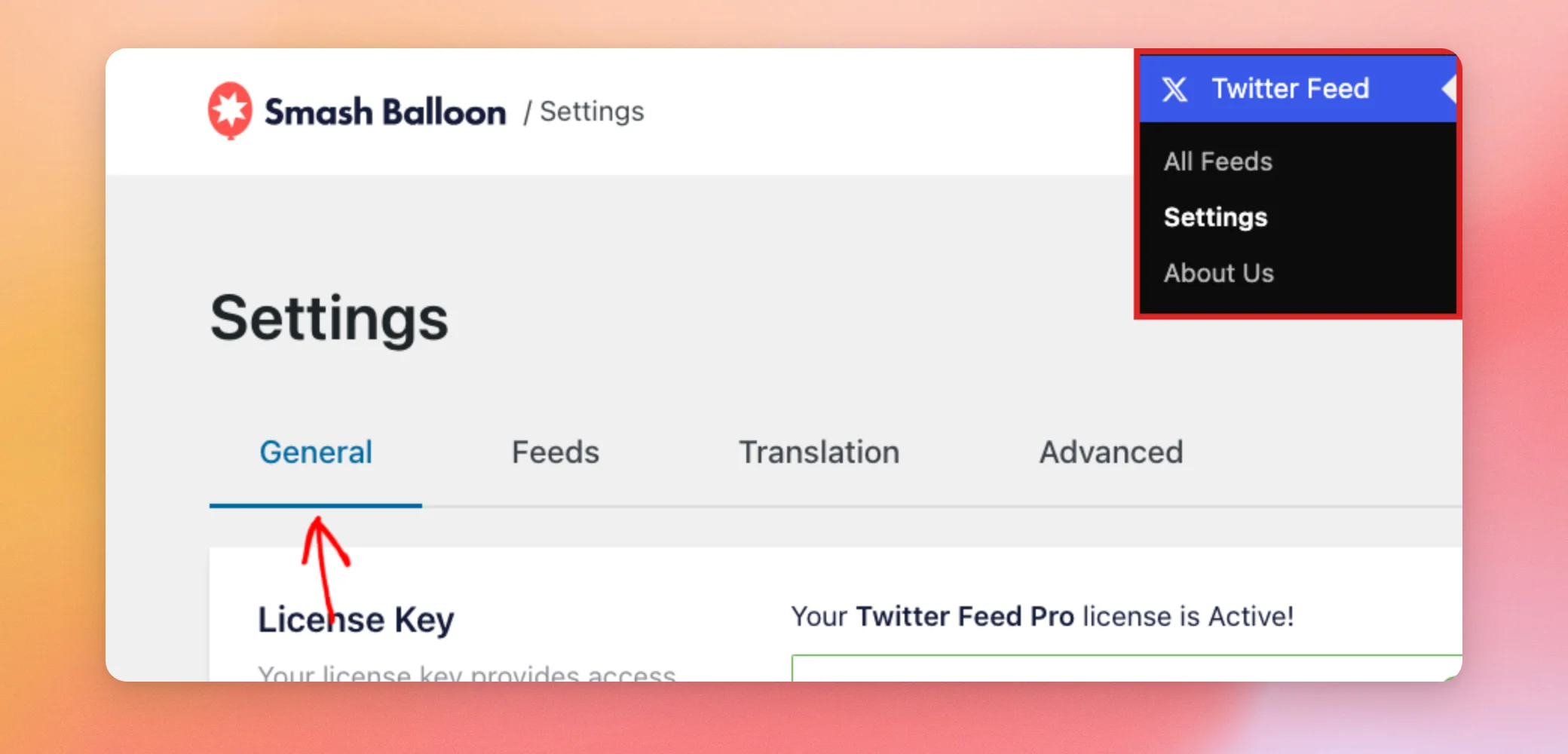
From your WordPress dashboard, go to Twitter Feed » Settings. The General tab opens first.
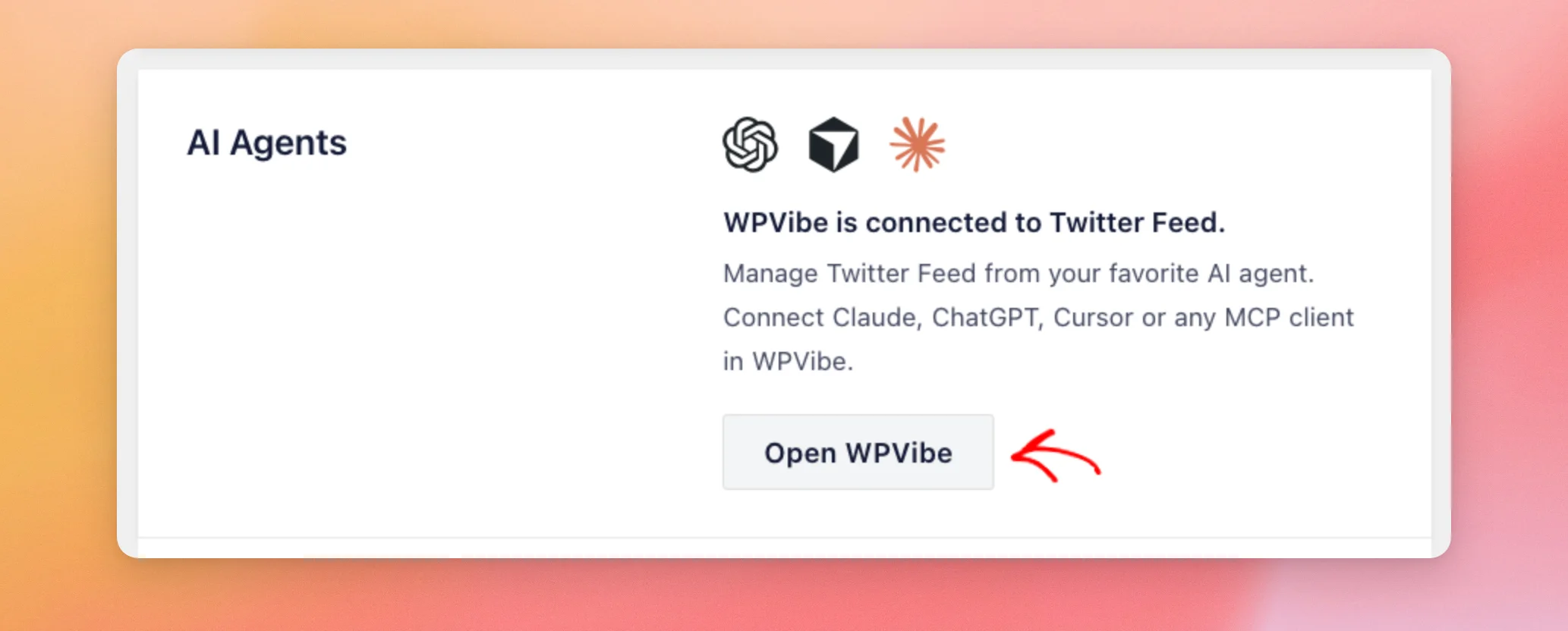
Next, scroll down to the AI Agents box. It says the plugin works through WPVibe, a free plugin you install once.
Then click the Install WPVibe for free button.

The plugin installs and activates WPVibe for you. When it’s done, the box says “WPVibe is connected to Twitter Feed” and the button changes to Open WPVibe. That is the button to use when you’re ready to connect your AI agent. The steps for that are in WPVibe.
With WPVibe installed, you’re ready to decide whether your AI agent can make changes.
Turning On MCP Write Access
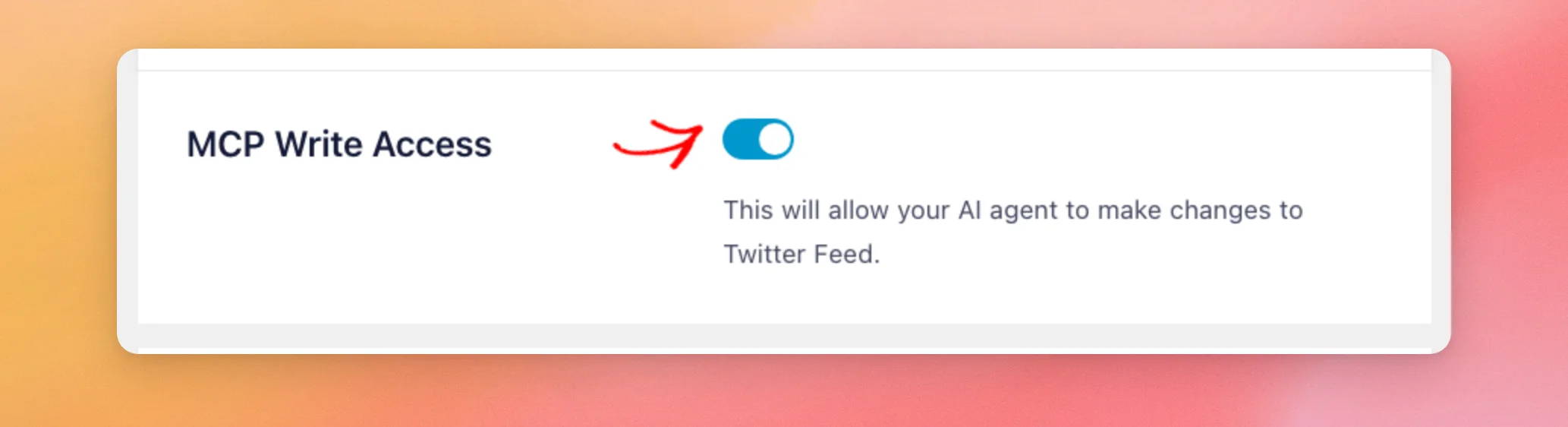
Next, scroll to MCP Write Access, right below the AI Agents box. The setting is off until you turn it on. That way, an AI agent can only read from the plugin until you choose to allow changes.
The plugin describes it as allowing your AI agent to make changes to Twitter Feed.
To allow changes, click the switch next to MCP Write Access so it turns blue.
When done, click Save Changes at the bottom of the page.

With your setting saved, the next section shows what your AI agent can do with it.
What Can an AI Agent Change?
With MCP Write Access off, an AI agent can only read information from the plugin. Requests to change something are refused. The plugin’s message tells the agent to enable MCP Write Access under Twitter Feed » Settings » General.
With MCP Write Access on, an AI agent can make changes such as these.
- Create a new feed.
- Change a feed’s settings.
- Change what a feed shows, such as the X accounts it displays.
- Change some plugin-wide settings, such as GDPR mode, rebranding, Persistent Cache and loading feeds through AJAX.
- Request a link for connecting an X account.
- Request the deletion of a single feed.
The agent can’t delete a feed by itself. A deletion request only returns a confirmation link.
The feed is deleted after you open that link while signed in to your site, check the feed’s name and click Delete feed. The link works once and expires after 15 minutes. Asking for another deletion replaces the one that’s waiting.
Turning Off MCP Write Access
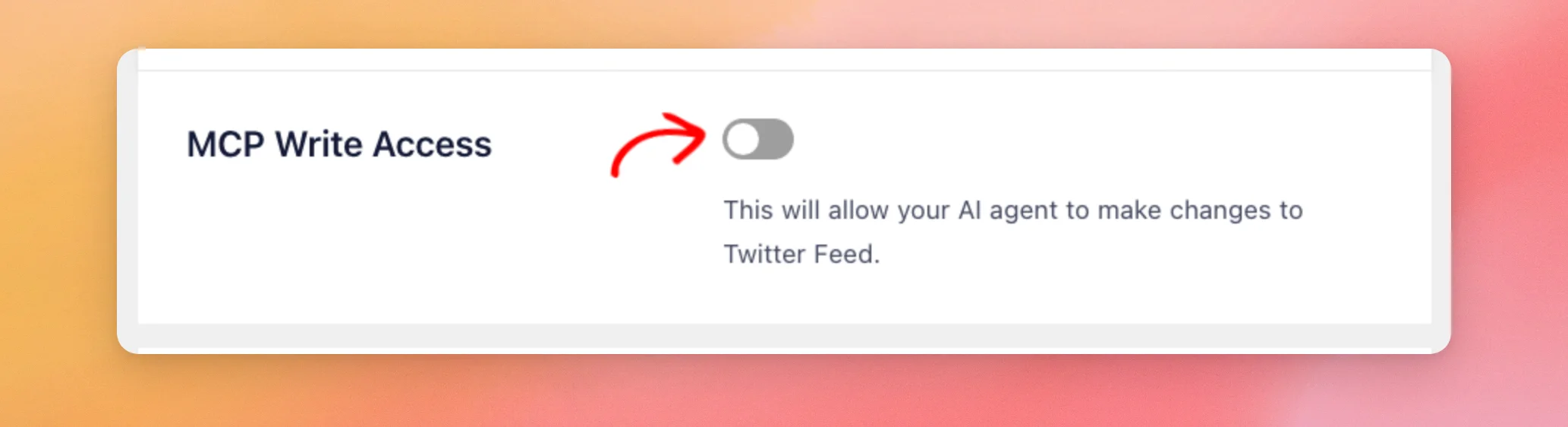
To stop your AI agent from making changes, go back to Twitter Feed » Settings and stay on the General tab. Next, click the switch next to MCP Write Access so it turns gray.
When done, click Save Changes at the bottom of the page.
Once you save with the switch off, any deletion links the agent asked for earlier are canceled. They can’t be used later, even if you turn the setting back on.
That’s it! You now know how to install WPVibe from the AI Agents box and how to turn MCP Write Access on or off for your AI agent. Next, see our GDPR compliance guide to learn about GDPR mode, one of the plugin-wide settings an AI agent can change.
Frequently Asked Questions
Below, we’ve answered some of the most common questions about MCP Write Access.
Is MCP Write Access on by default?
No. The switch is off until you turn it on and save. See Turning On MCP Write Access for the steps.
Do I need WPVibe to use MCP Write Access?
The AI Agents box says the plugin works through WPVibe, a free plugin you install once. The box installs WPVibe for you with a single click. You then connect Claude, ChatGPT, Cursor, or another MCP client in WPVibe.
Can an AI agent delete my feeds without asking me?
No. The agent can only request a deletion. The feed is removed after you open the confirmation link and click Delete feed. See What Can an AI Agent Change? for how the confirmation link works.
Do I need to turn on MCP Write Access for an AI agent to read my feeds?
No. Reading doesn’t depend on MCP Write Access. The switch only controls whether the agent can make changes.




