Social Wall
 Feed Analytics


How the Instagram Feed plugin handles GDPR, what data is transferred and stored, and where the GDPR setting lives.
Would you like to stop your Instagram feed from loading images and videos from Instagram until your visitors give consent?
In this guide, we’ll walk you through the GDPR setting in Instagram Feed. We’ll cover the consent plugins it works with and what changes in your feed until a visitor gives consent. We’ll also cover the Data Sharing settings.
Before you get started, make sure Instagram Feed is installed and activated on your WordPress site.
Important: If you are using our Instagram Feed plugin on your website then please refer to our GDPR disclosure for full details regarding compliance and how data is transferred and stored.
- Choosing a GDPR Setting
- Using a Supported Consent Plugin
- Seeing What Changes Before Consent
- Allowing the Plugin to Store Images
- Managing Data Sharing
- Frequently Asked Questions
Choosing a GDPR Setting
Instagram Feed includes a setting that turns on its GDPR related features. By default, it is set to Automatic. These features then turn on by themselves when one of the supported consent plugins is active on your site.
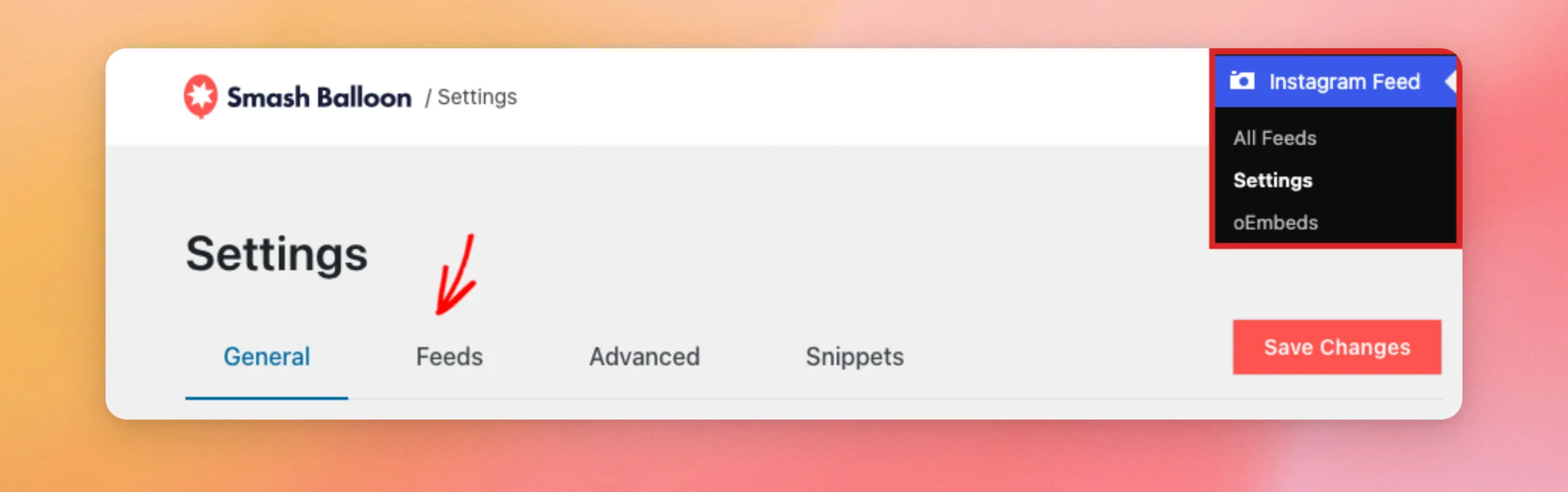
- In the WordPress dashboard, go to Instagram Feed » Settings, and click the Feeds tab.
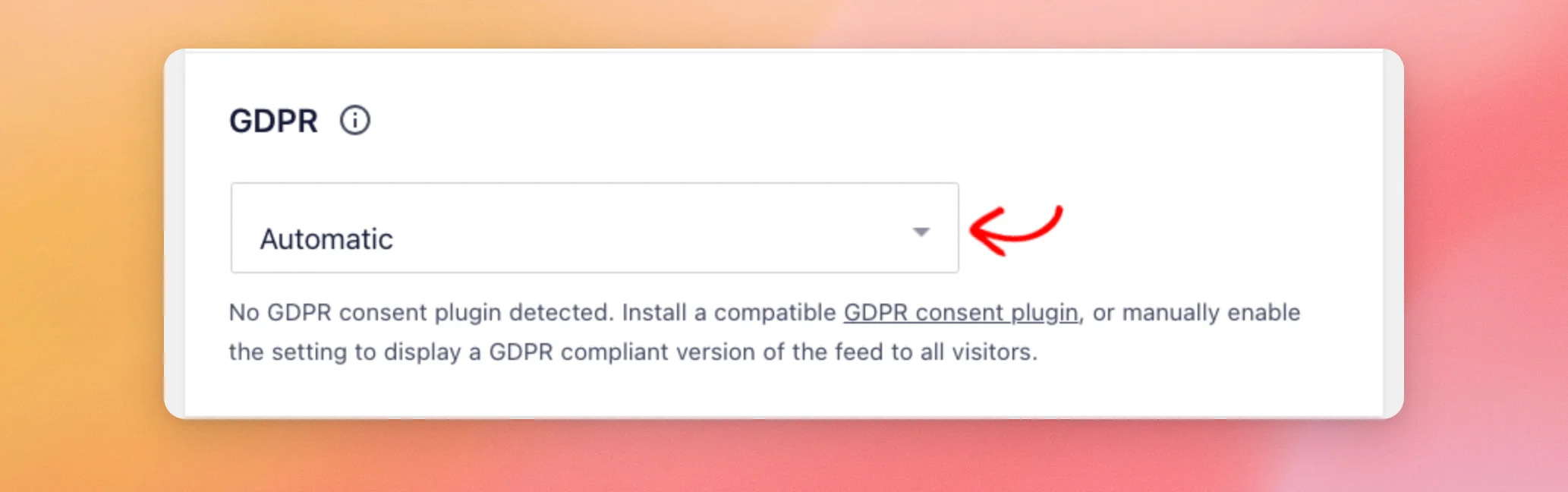
- In the GDPR box, open the dropdown and choose Automatic, Yes, or No.
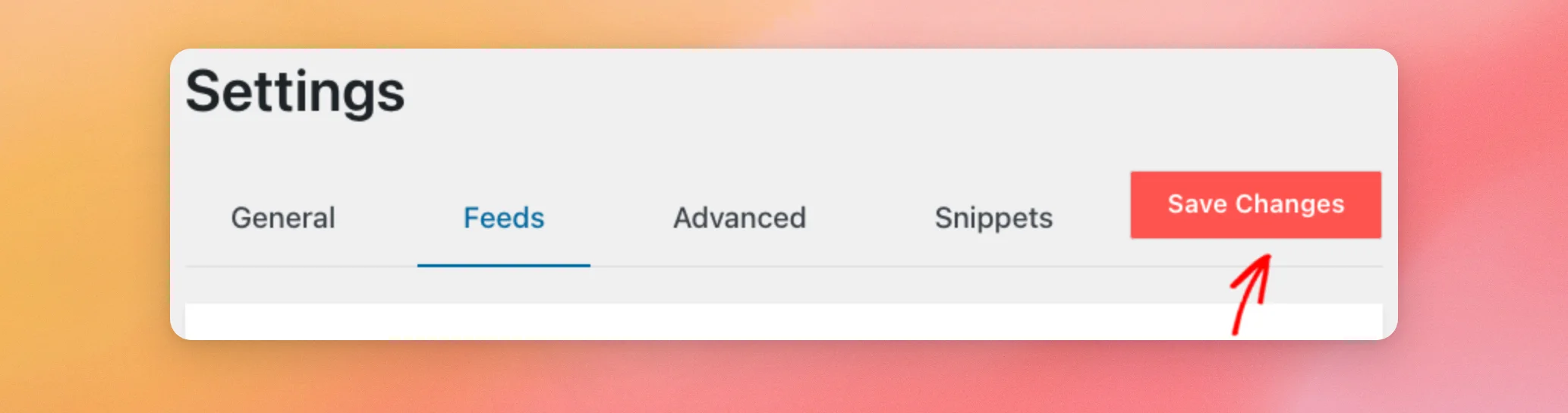
- When you’re done, click Save Changes.
Each option works as follows.
- Automatic loads a GDPR compliant version of the feed until consent is given. This only happens when one of the supported consent plugins below is active. Instagram Feed then only loads images and videos directly from Instagram if a visitor has given consent through that plugin. The setting shows the name of the plugin it found. If it finds none, it says “No GDPR consent plugin detected” and suggests that you install a compatible consent plugin or choose Yes.
- Yes shows the GDPR compliant version of the feed to all visitors. No requests are made to third-party websites, so some features of the plugin are limited.
- No turns the GDPR features off. The plugin works as normal and loads images and videos directly from Instagram.
Using a Supported Consent Plugin
With the Automatic option, Instagram Feed checks for the following consent plugins. These are the names the plugin shows on the GDPR setting.
- WPConsent by the WPConsent team
- Real Cookie Banner by devowl.io
- Cookie Notice by dFactory
- GDPR Cookie Consent by WebToffee
- CookieYes | GDPR Cookie Consent by CookieYes
- Cookiebot by Cybot A/S
- Complianz by Really Simple Plugins
- Borlabs Cookie by Borlabs
- GDPR Cookie Compliance by Moove Agency
In the free plugin, if WPConsent is not active on your site, the Feeds tab also shows an Install WPConsent for GDPR box. Its button reads Install WPConsent, or Activate WPConsent if the plugin is already installed.
Using a GDPR plugin that is not listed here? Some plugins have a setting to run custom JavaScript code once the cookie notice has been accepted. If yours does, see our guide on adding support for the GDPR setting in unsupported GDPR plugins.
Seeing What Changes Before Consent
Before the visitor gives consent, the GDPR compliant version of the feed does not load images and videos directly from Instagram. To accommodate this, it has the following differences.
- Only local images (not from Instagram’s CDN) are displayed in the feed.
- Placeholder blank images are displayed until images are available.
- Video posts link to the post on Instagram.com for visitors to watch.
- Carousel posts only show the first image in the lightbox.
- The maximum image resolution is 640 pixels wide in the lightbox.
The plugin shows the same list in a What will be limited? link below the dropdown. It appears when the setting is on Yes, or on Automatic with a consent plugin detected.
Allowing the Plugin to Store Images
The GDPR compliant version of the feed relies on local copies of your images, which Instagram Feed saves on your site. If the placeholder images never go away, your server may not be set up to allow this. Next, check the following.
- Your server must allow the plugin to create a folder in your WordPress uploads folder for the resized images. If it does not, ask your host to allow it.
- Your MySQL user must have “create” capabilities, so the plugin can create its custom database tables. If it does not, ask your host for help.
- Your server needs an image editor that WordPress can use to resize images.
For more help, see our guide on images that are missing or showing errors in your feed.
Managing Data Sharing
Since version 6.14.0, Instagram Feed has Data Sharing settings. They control whether the plugin shares usage data with Smash Balloon. The plugin describes it as “limited, non-sensitive usage data” used “to keep your plugins updated and improve our products.” It also says it never collects your feed content or your visitors’ personal information. To see what is shared, read what permissions are being granted.
Finding the Settings in the Free Plugin
- In the WordPress dashboard, go to Instagram Feed » Settings, and click the Data Sharing tab.
- Turn the Data sharing toggle on or off. Below it, the plugin links to What permissions are being granted?, Terms & Conditions, and Privacy.
- Turn the In-Plugin Notifications toggle on or off. These are notifications about updates, fixes, and new features. When Data sharing is on, this toggle is turned on and cannot be changed.
- When you’re done, click Save Changes.
If no Smash Balloon paid plugin is active on your site, both toggles are off until you choose to turn them on. The setup wizard and a one-time prompt in the plugin also ask for your choice. When data sharing is off, no usage data is sent, and the plugin does not load in-plugin notifications or About Us page content from Smash Balloon.
If a Smash Balloon paid plugin is active on your site, the Data Sharing tab is hidden and both settings are turned on.
Finding the Settings in Instagram Feed Pro
In Instagram Feed Pro 6.14.0 and later, a Data sharing section under Instagram Feed » Settings » General explains the usage data the plugin collects and the in-plugin notifications it sends. It also includes links to learn more.
Checking the Usage Tracking Setting
Instagram Feed also has a separate Usage Tracking setting on the Advanced tab of Instagram Feed » Settings. Its description says it sends a weekly report to Smash Balloon to help improve the product. It also says that no sensitive data is collected and that you can turn it off at any time. If you want to limit what the plugin sends to Smash Balloon, review this setting as well as Data sharing.
To see what the usage report holds and how to turn it off, see Controlling Data Sharing and Usage Tracking in our Instagram Feed Settings Reference.
That’s it! You now know how to set up the GDPR setting in Instagram Feed and manage what data the plugin shares. To find out which consent plugins work with our plugins, see What GDPR Consent Plugins does the Plugin Work With?
Frequently Asked Questions
Below, we’ve answered some of the most common questions about GDPR in Instagram Feed.
Do I need a consent plugin to use the GDPR setting?
No. If you choose Yes in the GDPR setting, the plugin shows the GDPR compliant version of the feed to all visitors, with no consent plugin involved. See Choosing a GDPR Setting.
What is the default GDPR setting?
The default is Automatic. The GDPR compliant version only loads when one of the supported consent plugins is active. See Using a Supported Consent Plugin for the list.