Social Wall
 Feed Analytics


How Smash Balloon licence auto-renewal works, plus how to update a card or PayPal payment method and cancel a subscription.
Would you like to manage the auto-renewal subscription on your Smash Balloon license?
In this guide, we’ll walk you through how auto-renewal subscriptions work, how to update the card or PayPal account that pays for one, and how to cancel one. You’ll need the login for the Smash Balloon account the purchase was made under.
- Understanding Auto-Renewal Subscriptions
- Managing Email Subscriptions
- Updating Your Payment Method
- Cancelling an Auto-Renewal Subscription
- Checking Your License Expiration Date
- Frequently Asked Questions
Understanding Auto-Renewal Subscriptions
When you buy a plugin, renew a license, or upgrade to another plugin, we create an auto-renewal subscription for each item in the purchase. You manage them all in the Smash Balloon account the purchase was made under.
Subscriptions save you from coming back each year to renew by hand. Keeping one in place means:
- Your license stays active, so you keep the paid features of the plugin.
- You keep getting plugin updates and access to our support team, which keeps you covered when social media platforms or WordPress change.
- You keep your current renewal rate if prices go up later.
- You skip the checkout steps a manual renewal needs.
If you’d rather not have a subscription for an item, you can cancel it at any time after the purchase. The steps are in Cancelling an Auto-Renewal Subscription below.
Managing Email Subscriptions
When you create a Smash Balloon account, we add your email to our mailing list. Those emails cover changes to the social media platforms our plugins connect to, tips for getting more from your plugins, and any promotions we’re running.
To stop receiving them, click the Unsubscribe link at the bottom of any of these emails. That removes your address from the list for good.
Updating Your Payment Method
You can change the payment method behind an auto-renewal subscription. The steps depend on how you paid. If you’re not sure which one you used, think back to the payment option you picked at checkout. Card payments are updated in your Smash Balloon account. The new card details go straight to Stripe, which processes our card payments. PayPal payments are updated in your PayPal account instead.
Updating a Credit Card
To update the card, log in to your Smash Balloon account. Next, click the Billing section. Then scroll to the bottom of the page. Next to the subscription for the purchase you want to change, click Update Payment.
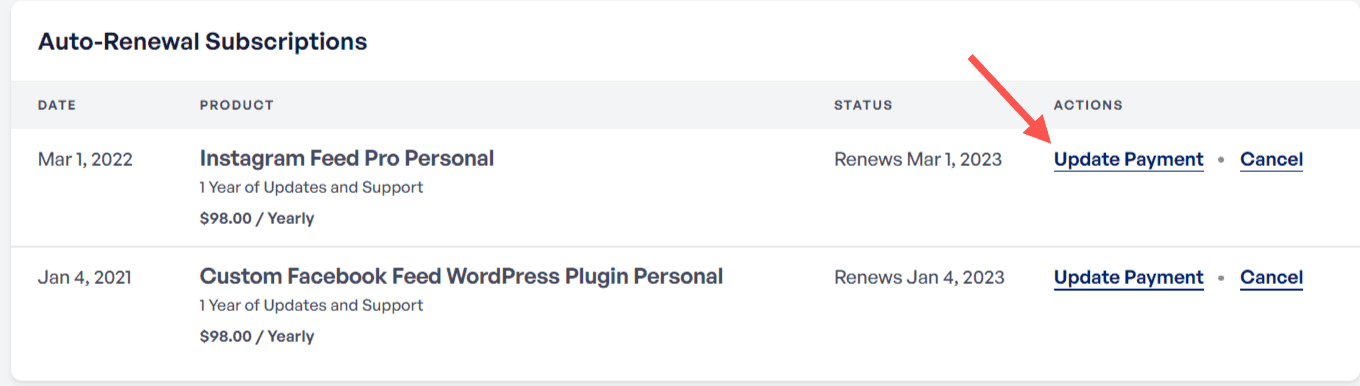
Next, enter the new card details for that subscription. If you don’t see a subscription on the page, you don’t need to update anything yet. This can happen with an older account. When you manually renew your license, the card you use at checkout becomes the payment method for future auto-renewals.
Updating a PayPal Payment Method
If you paid with PayPal, change the payment method inside your PayPal account:
- Log in to your PayPal account.
- In the top-right corner, next to the Log out button, click your account name. Then click Account Settings.
- On the left side of the dashboard, click Money, banks and cards. You can edit a card on the account, link a new card, or set up an automatic payment.
- Because you want to change the payment for an existing subscription, click Website payments instead of editing a card.
- Next, select the Smash Balloon merchant.
- Then change the payment method associated with it.
PayPal’s own help pages cover these steps in more detail: changing your preferred payment method and updating an automatic payment.
Cancelling an Auto-Renewal Subscription
Note: Cancelling stops only the automatic renewal payment. Your license stays active until its expiration date, and you keep plugin updates and support until then.
To cancel a subscription, follow these steps:
- Log in to your Smash Balloon account.
- At the top of the page, click the Billing tab.
- Next, scroll down to the Auto-Renewal Subscriptions section near the bottom of the page. Then click Cancel.
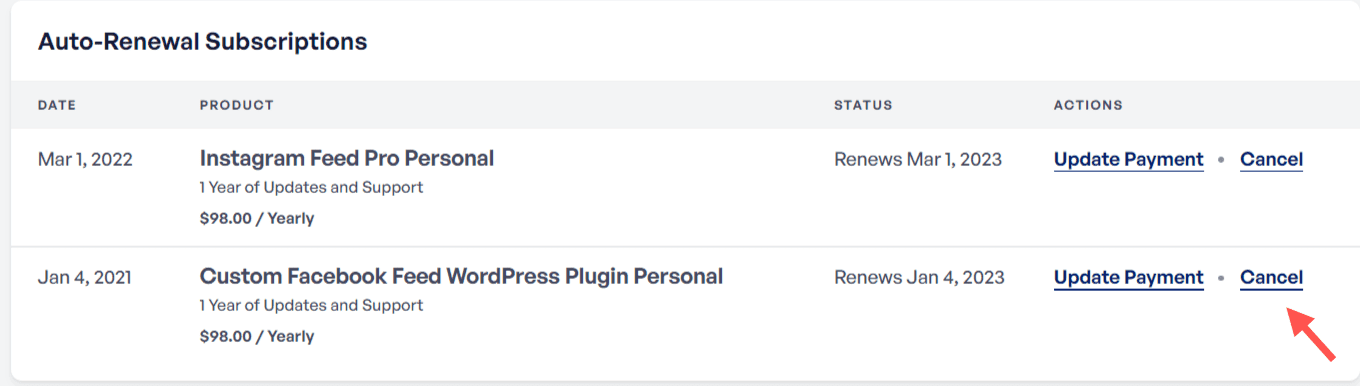
- After you click Cancel, 2 pop-ups appear and explain the benefits of keeping a subscription and the risks of cancelling. Read them. Then check the boxes in the second pop-up to continue.
When the cancellation goes through, your account shows the subscription as cancelled in the Status column. Because the automatic renewal is off, you’ll need to renew the license yourself before it expires to keep getting updates.
Checking Your License Expiration Date
After cancelling, you can check when your license expires, so you know when to renew it. At the top of your account page, click the link to the Downloads section. Then scroll down to the plugin from that purchase. Its license shows the Expires date.
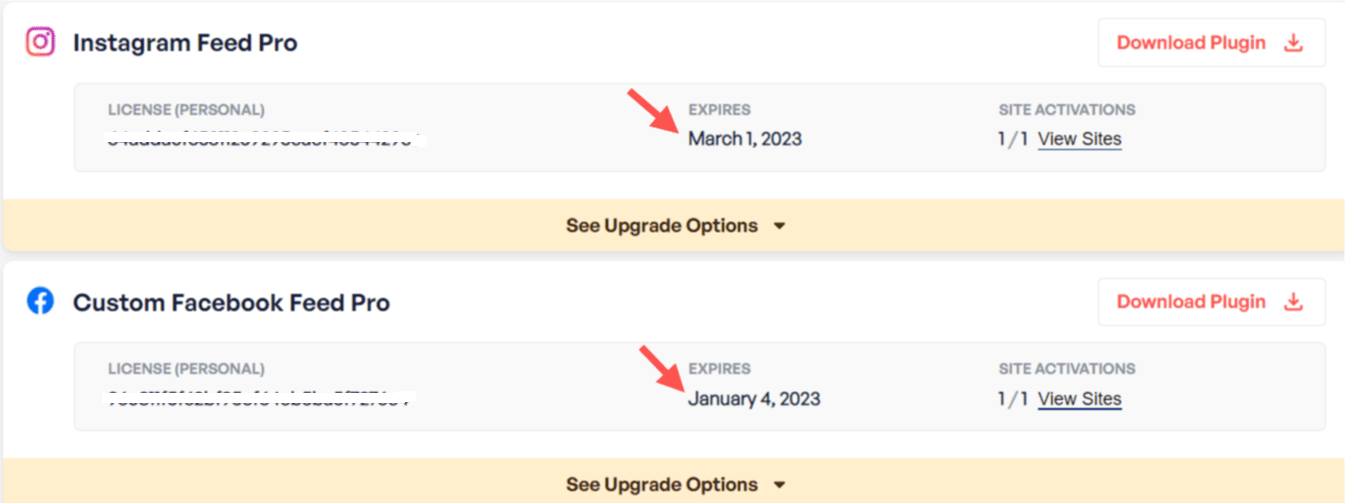
That’s it! You now know how to keep, update, or cancel the auto-renewal subscription on your license.
Next, see our guide on renewing your license for what to do when a license is about to expire.
Frequently Asked Questions
Below, we’ve answered some of the most common questions about auto-renewal subscriptions.
Do I lose my plugin if I cancel the subscription?
No. The note at the top of Cancelling an Auto-Renewal Subscription above explains what you keep after cancelling.
Why do I keep getting renewal or payment failed emails?
Renewal reminder and payment failed emails are sent automatically and repeat while a payment is pending. If you’re in the middle of replacing a card, you can ignore the repeats. Nothing on your site breaks in the meantime.
I can’t log in to my account. How do I cancel?
Open a Support ticket and tell us which subscription to cancel. Our team can cancel it for you and confirm once it’s done.