


 Social Wall
 Feed Analytics


Would you like your X feed to load more posts automatically when visitors scroll to the end?
In this guide, we’ll walk you through turning on Infinite Scroll in Custom Twitter Feeds and setting how early it loads the next posts. All you need is Custom Twitter Feeds and a feed that’s already created.
Requirements: Infinite Scroll requires the elite license level.
- Turning On Infinite Scroll
- Setting the Trigger Distance
- Saving Your Changes
- Frequently Asked Questions
Turning On Infinite Scroll
To get started, we’ll open the feed you want to change.
From your WordPress admin sidebar, go to Twitter Feed » All Feeds. The plugin’s menus and screens still use the name Twitter. That’s the name you’ll see in these steps.
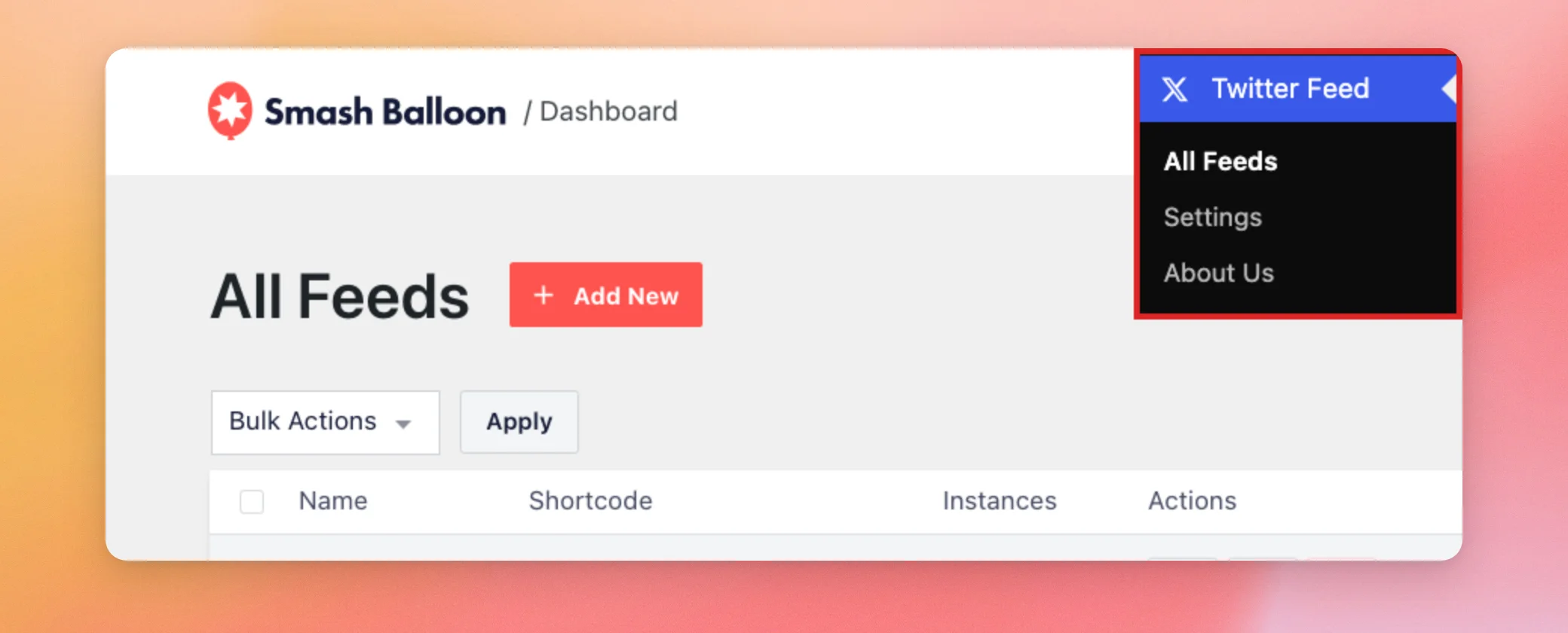
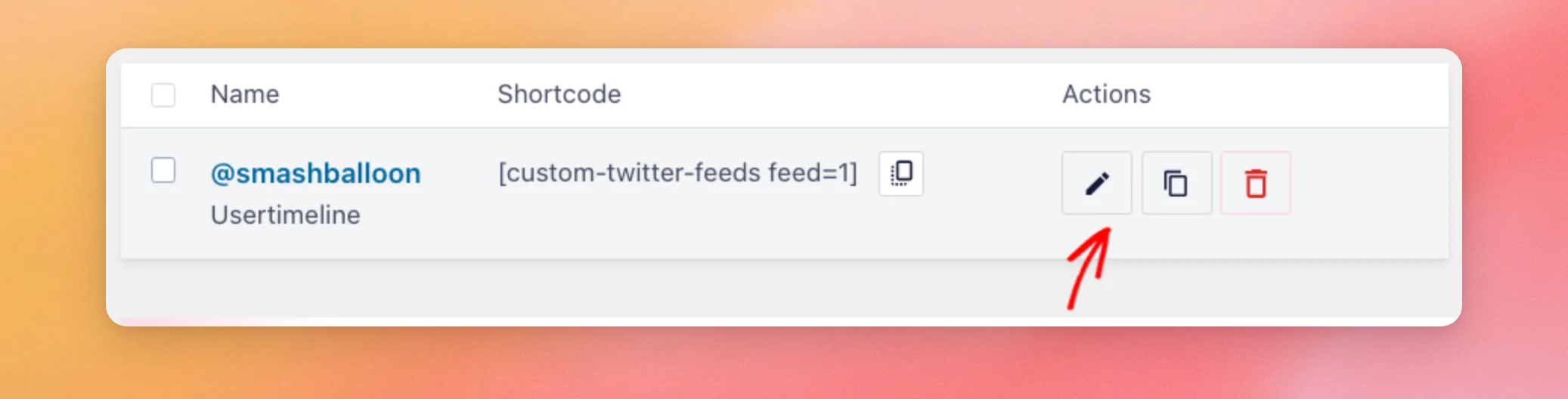
Next, find the feed you want to change and click the pencil icon to edit it.
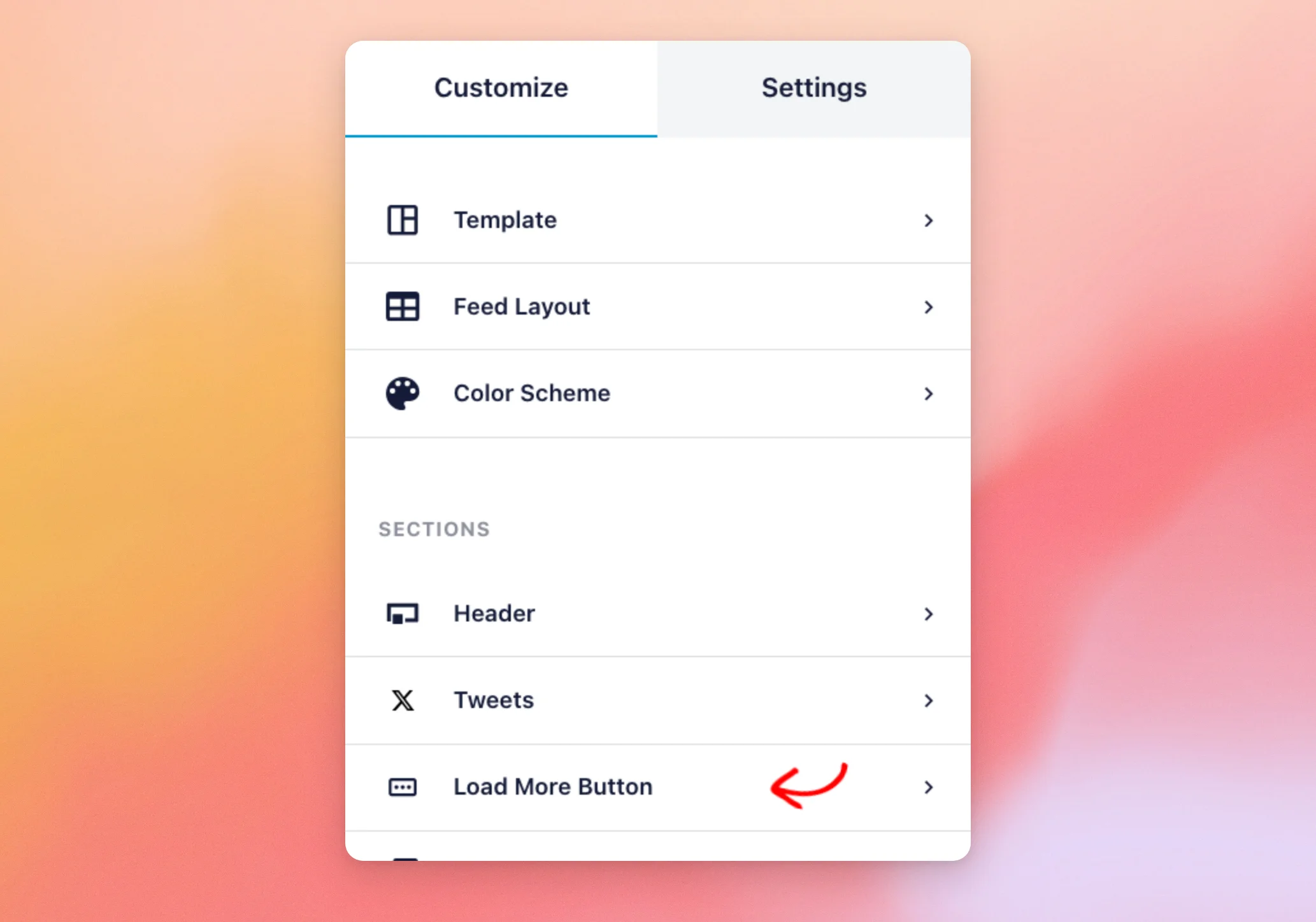
In the feed customizer, stay on the Customize tab. Then, click Load More Button.
Note: Infinite Scroll works through the Load More button, so the Enable switch at the top of this section needs to be on. You can only turn on Infinite Scroll for the list and masonry layouts.
Custom Twitter Feeds leaves Infinite Scroll off for new feeds, so visitors decide when to see more posts by clicking the Load More button. When you switch it on, the feed loads the next posts by itself as visitors scroll near the end.
Next, scroll down in this section. Then, switch on Infinite Scroll.

Infinite Scroll is now switched on for this feed.
Setting the Trigger Distance
The trigger distance controls how early the next posts load. Once Infinite Scroll is on, a Trigger Distance field appears below it. It’s measured in pixels and the default is 200.
With the default, the next posts start loading when a visitor is 200 pixels from the bottom. You can leave the default as it is if you’re not sure. A larger number loads them sooner. A smaller number waits until the visitor is closer to the bottom.
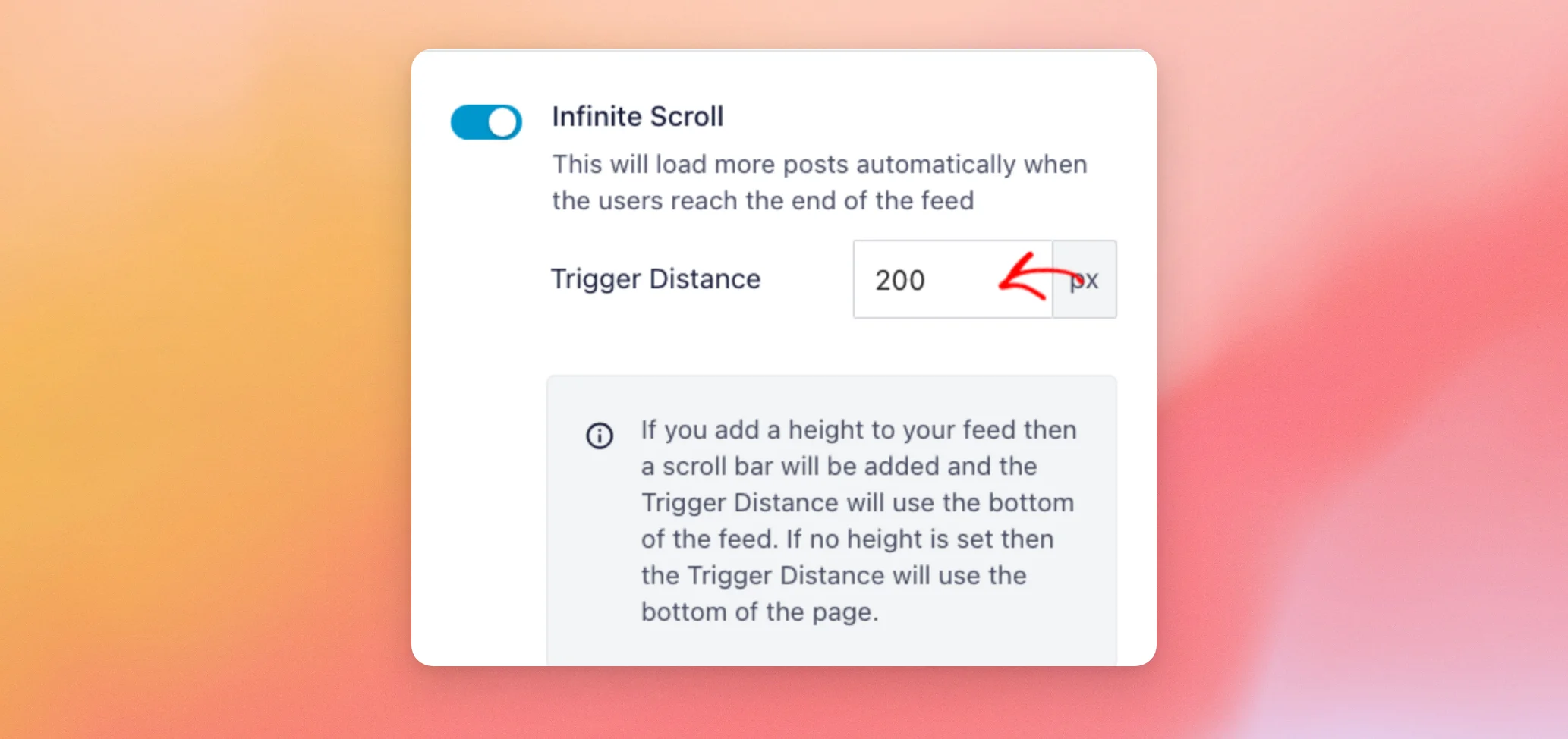
What the trigger distance counts from depends on your feed’s height. If you add a height to your feed, a scroll bar appears. The distance then uses the bottom of the feed. If you don’t set a height, it uses the bottom of the page.
Saving Your Changes
When you’re done, click Save at the top of the customizer. Your change is only kept after you save.
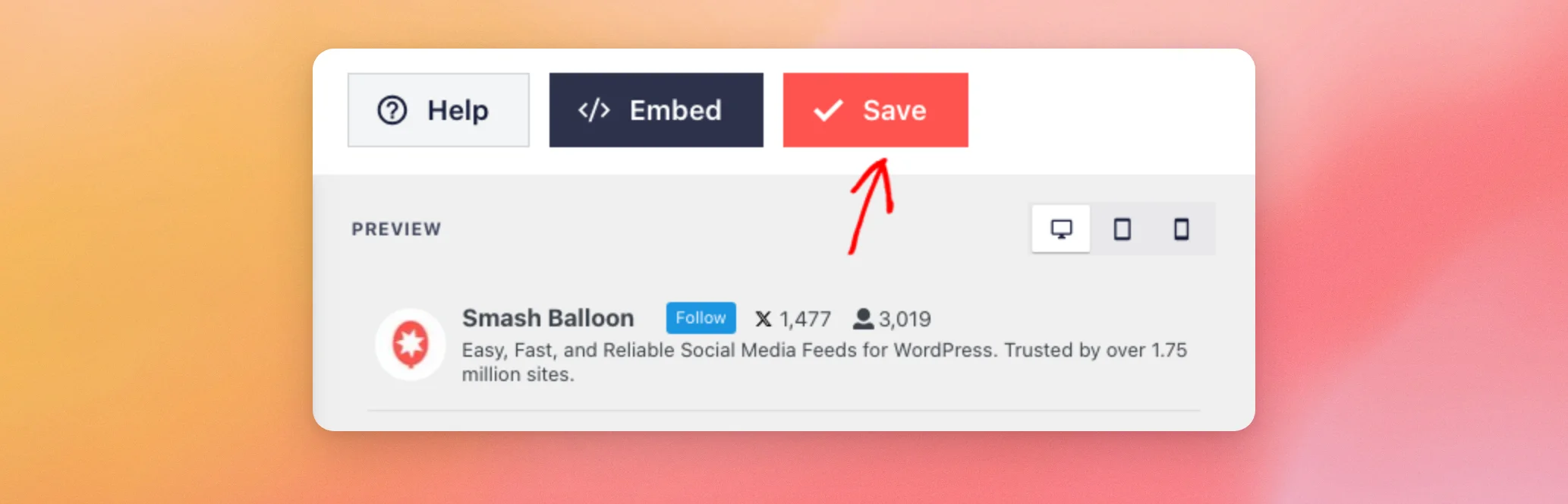
Your change is now saved.
After you save, view the feed on your site. It shows its first set of posts.
When a visitor scrolls to the trigger distance, the plugin loads the next set and adds it below the posts already on the page. It repeats each time the visitor reaches the end, until the feed has no more posts to show.
That’s it! Infinite Scroll is now on, so your X feed loads the next posts by itself when visitors scroll near the end. Next, you may want to keep certain posts out of the feed as it loads more. See our guide on hiding specific posts in your X feed.
Frequently Asked Questions
Below, we’ve answered some of the most common questions about Infinite Scroll.
Why can’t I turn on the Infinite Scroll switch?
You can only turn it on when the Enable switch in the Load More Button section is on and the feed uses the list or masonry layout. It also needs the elite license level.
Does the Load More button disappear when I turn on Infinite Scroll?
No. The Load More button stays in the feed. When a visitor reaches the trigger distance, Infinite Scroll clicks it for them, and visitors can still click it themselves.
Which license level do I need for Infinite Scroll?
You need the elite license level. Older Personal, Business, and Developer licenses keep every feature, including Infinite Scroll.




