Social Wall
  Feed Analytics

Would you like your visitors to watch your Facebook Reels in a fullscreen player they can swipe through, right on your site?
In this guide, we’ll walk you through how to turn on Swipe View in Custom Facebook Feed Pro and how it works for your visitors. All you need is Custom Facebook Feed Pro and a feed that shows Reels from your Facebook Page.
Requirements: Swipe View requires Custom Facebook Feed Pro version 4.14.0 or higher, available with any paid license level.
Before you get started, make sure Custom Facebook Feed Pro is installed and activated on your WordPress site.
Swipe View is turned off by default. While it’s off, Reels open in the lightbox, like your other posts. Once you turn it on, Reels in your feeds open in Swipe View instead.
Here is what we will cover:
Turning On Swipe View
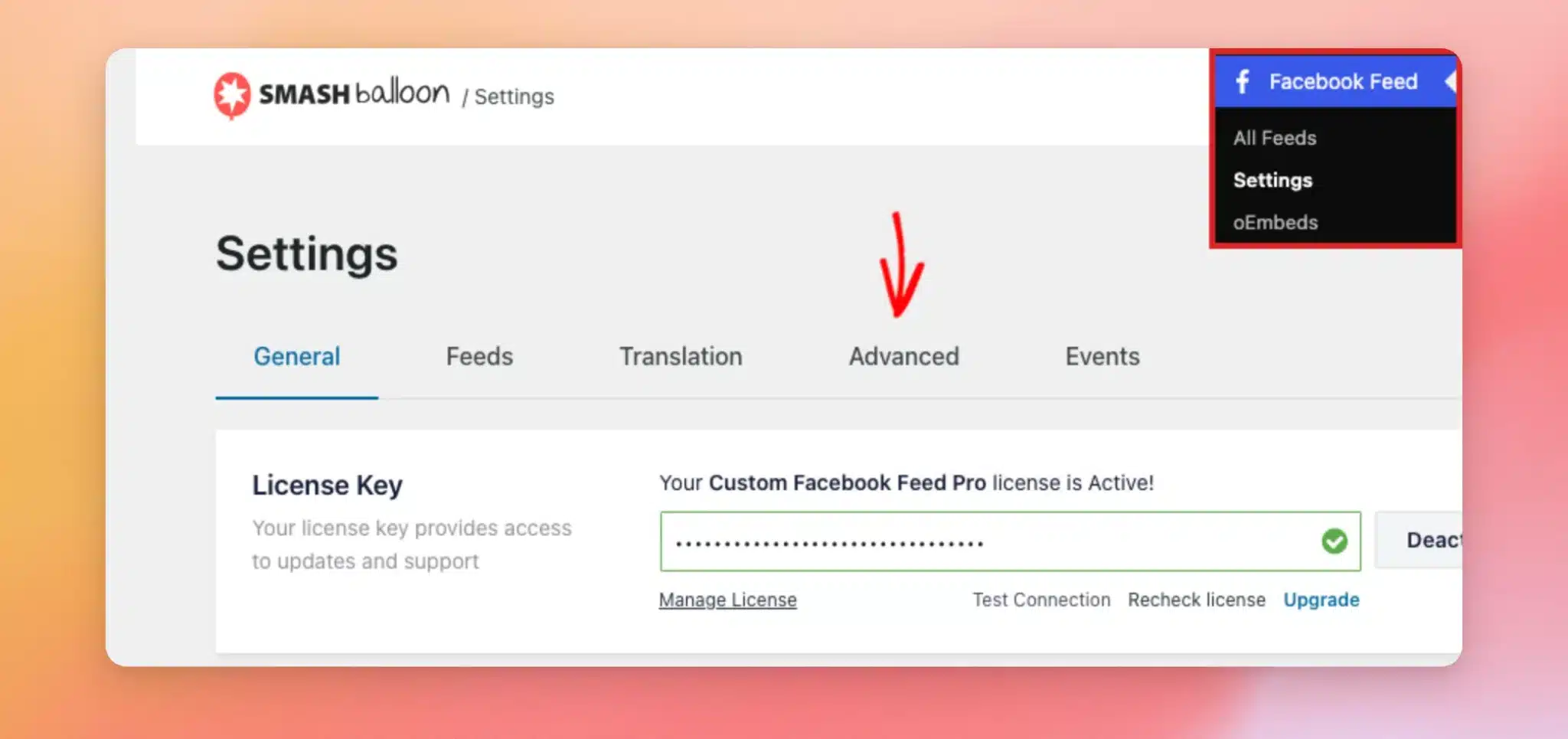
To get started, go to Facebook Feed » Settings in your WordPress dashboard. Then, click the Advanced tab.
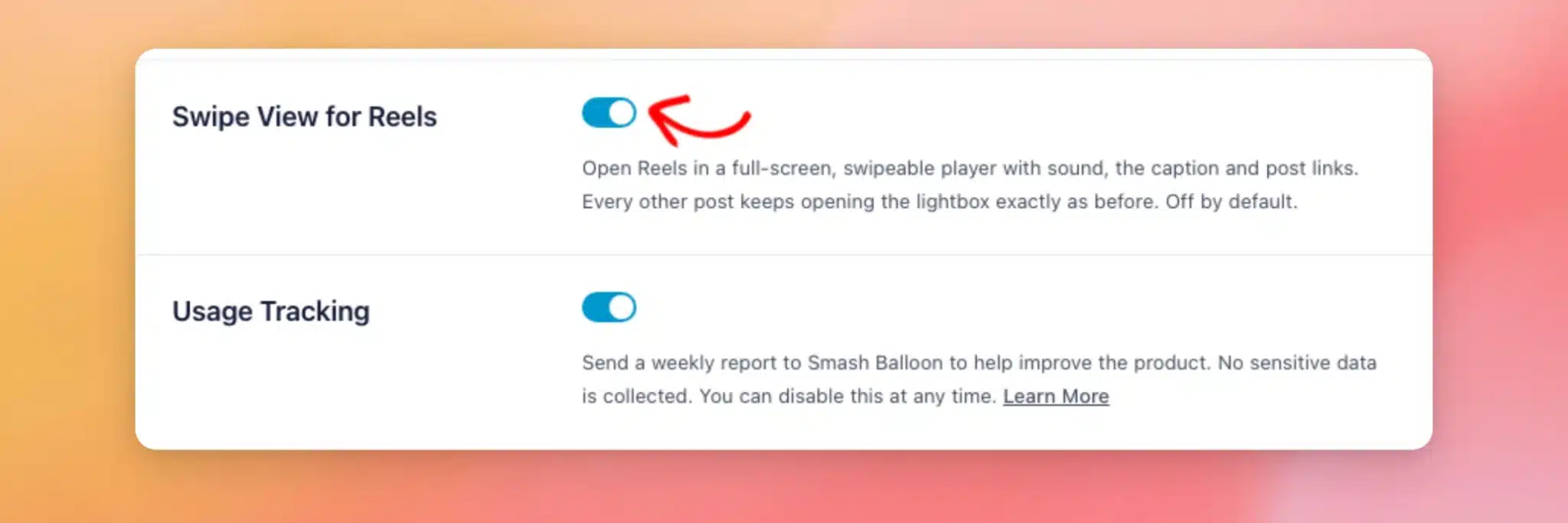
Next, turn on the Swipe View for Reels toggle.
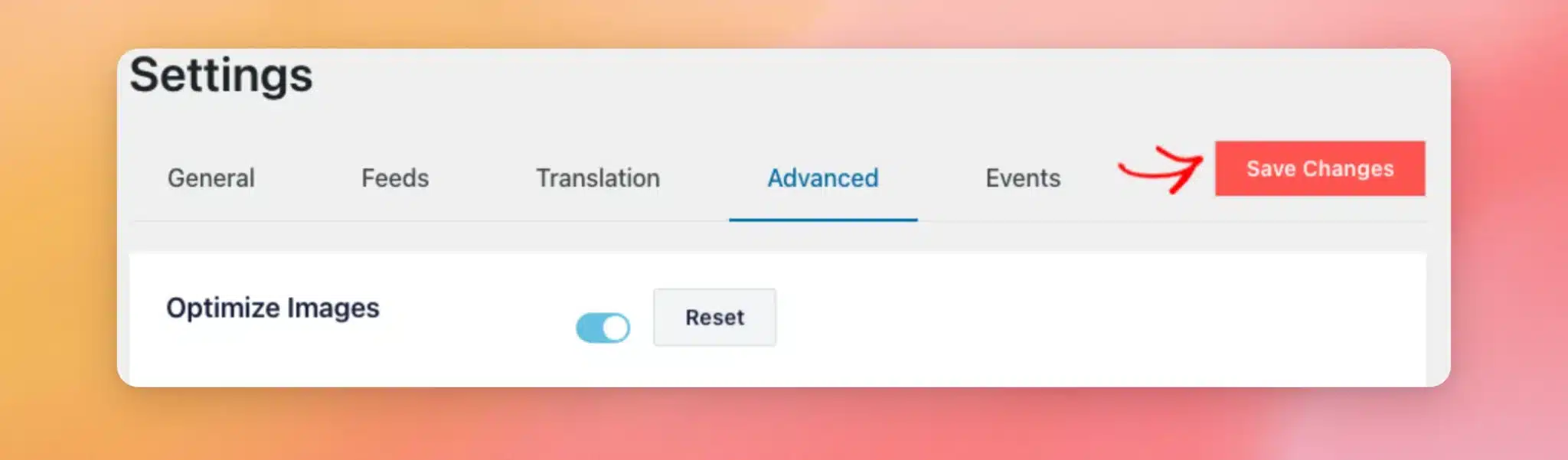
When you’re done, click Save Changes.
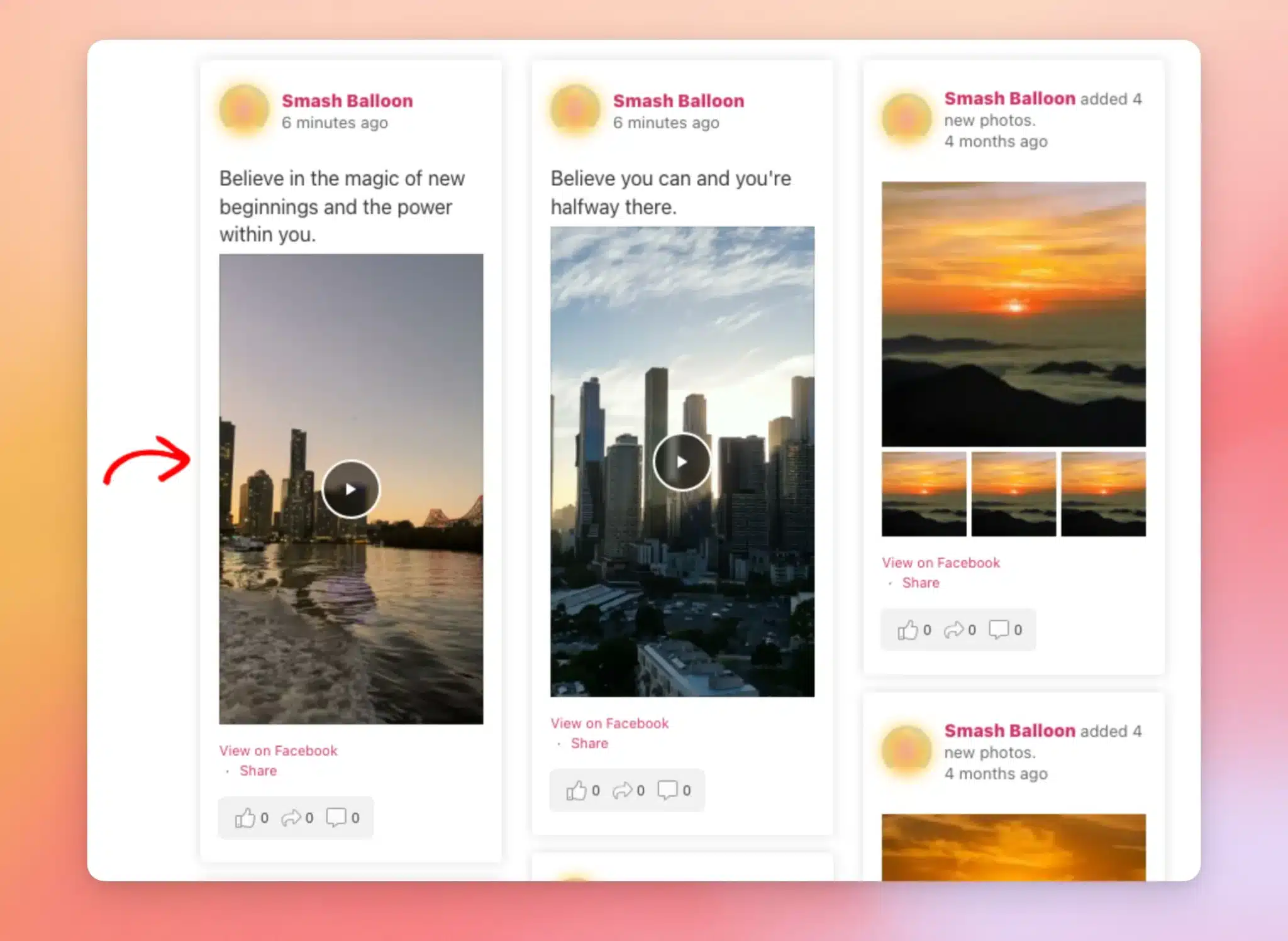
From now on, Reels in your Facebook feeds open in Swipe View.
Watching Reels in Swipe View
Next, we’ll look at Swipe View the way your visitors see it.
To open Swipe View, click a Reel in your feed on the front end of your site.
The Reel opens in a fullscreen, vertical player and starts playing. The player also shows your Page name with a Follow button, the caption, a View on Facebook button, and a share button. When Facebook provides them, it shows the like and comment counts too.
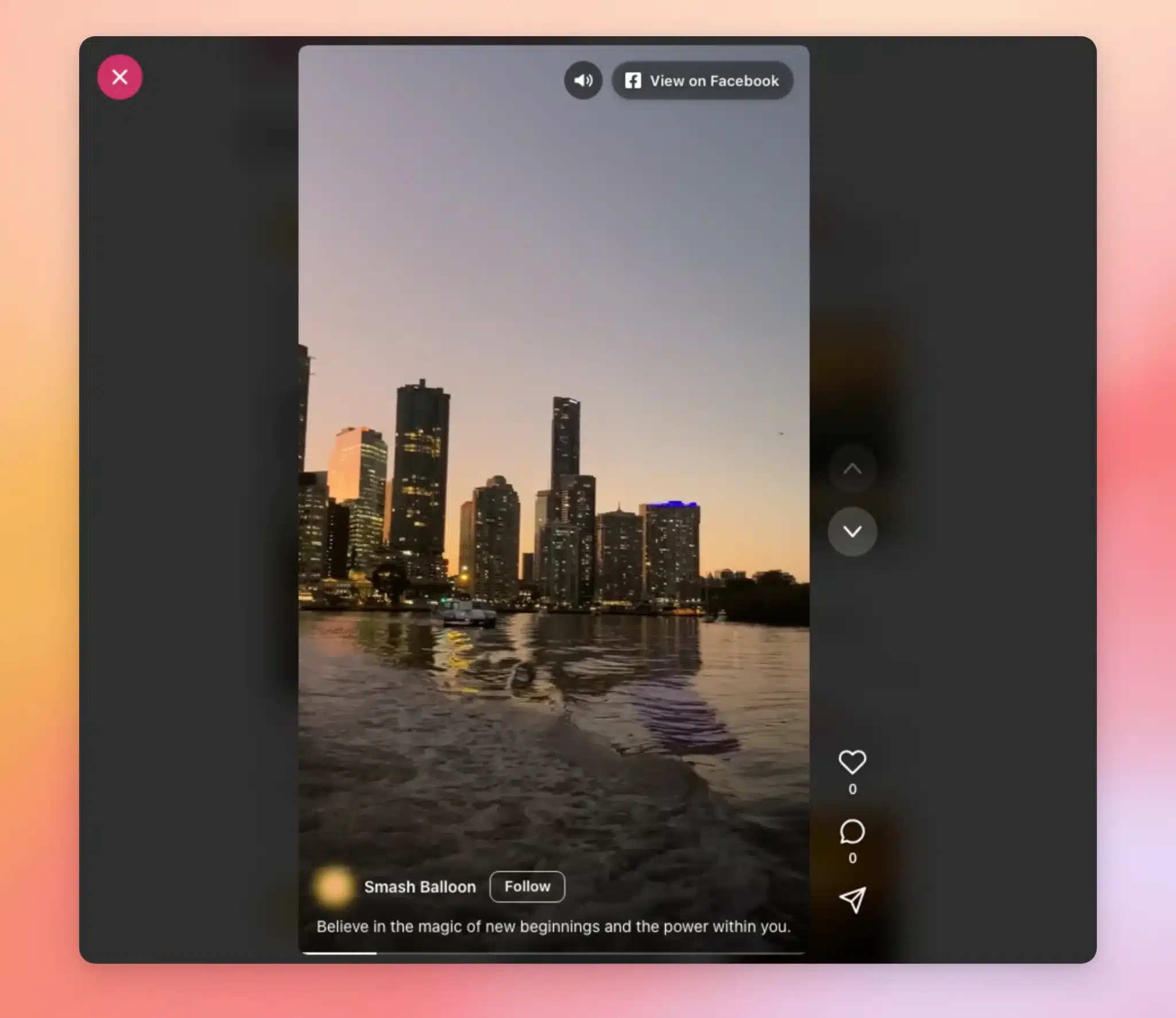
Here’s how visitors can use the player:
- Move between Reels — Swipe up or down, scroll, or click the arrows beside the player. The up and down arrow keys on a keyboard work too.
- Turn the sound on or off — At the top of the player, click the speaker button.
- Close the player — In the top-left corner, click the X. The Esc key works too.
Swipe View only moves through the Reels that have loaded in that feed. Photos and other posts in the feed still open in the lightbox.
Note: A feed’s lightbox can be turned off in the feed editor’s Lightbox settings. If a feed with the lightbox off plays its videos directly in the feed, its Reels keep playing there.
That’s it! You now know how to turn on Swipe View and how it works for your visitors. Next, take a look at our guide on displaying Facebook videos to show a feed of just your videos.
Frequently Asked Questions
Below, we’ve answered some of the most common questions about Swipe View for Facebook Reels.
Why does a post open in the lightbox instead of Swipe View?
Swipe View is made for Reels. Photos, regular videos, and other posts keep opening in the lightbox.
Why do my Reels still open in the lightbox after I turn on Swipe View?
If your site uses a caching plugin, visitors can still see a copy of the page from before you turned on Swipe View. When you save your settings, Custom Facebook Feed Pro clears the cache of several caching plugins for you.
If your Reels still open in the lightbox, clear your site’s cache. See How to Clear Your Cache in WordPress for a step-by-step guide.
Does Swipe View work in video feeds?
Yes. Reels open in Swipe View in both timeline feeds and video feeds. Video feeds are available with the plus license level or higher.
Do Reels play with sound in Swipe View?
Swipe View tries to play each Reel with sound. Some browsers only allow videos to start muted. In that case, click the speaker button to turn the sound on.
How do I preview Swipe View?
Since Swipe View runs on the front end, open a page on your site that shows your feed. Then, click a Reel to open it in Swipe View.
Does Swipe View work with GDPR mode?
Yes. When GDPR mode is on, Reels open in Swipe View once the visitor gives consent. Until then, Reels open the way they do without Swipe View.
Does Swipe View work on phones?
Yes. On a phone or tablet, visitors swipe up or down to move from one Reel to the next.
How do I turn Swipe View off?
In your WordPress dashboard, go to Facebook Feed » Settings. Then, click the Advanced tab. Next, turn off the Swipe View for Reels toggle. When you’re done, click Save Changes. Your Reels go back to opening in the lightbox.