


 Social Wall
 Feed Analytics


What changed in the Pro X (Twitter) plugin after X withdrew legacy API access, and which features are no longer supported.
Would you like to understand why your X (formerly Twitter) feeds update less often or show fewer posts than you expect?
In this guide, we’ll explain how often your feeds update, which feed types you can use, and how many posts your feed can show. All you need is the Custom Twitter Feeds plugin on your WordPress site.
Note: Using the free version? See the Free version section for the limits that apply to it.
- How the X API Changes Affect Your Feeds
- How the Daily Update Limit Works
- Using the Available Feed Types
- Loading More Posts
- Connecting Your Own X App
- Free version
- Frequently Asked Questions
How the X API Changes Affect Your Feeds
In April 2023, X changed its API and ended the access that the plugin had used to get posts. Each update now has a cost.
To keep your feeds working, the plugin gets your posts through our own feed update system. You don’t need an X developer account to use it. The cost of each update is why your feeds have the limits in this guide.
The plugin’s menus and screens still use the name Twitter, so you’ll see that name in the labels below.
How the Daily Update Limit Works
Your site receives a set number of source updates each day. A source is one account, hashtag, search, or list in a feed.
The number depends on your license level. It is 12 on the basic license level, 18 on the plus license level, and 24 on the elite license level.
To see your limit, look below the Caching list on the Feeds tab of the plugin’s Settings page. The green note there shows how many source updates your site receives each day.
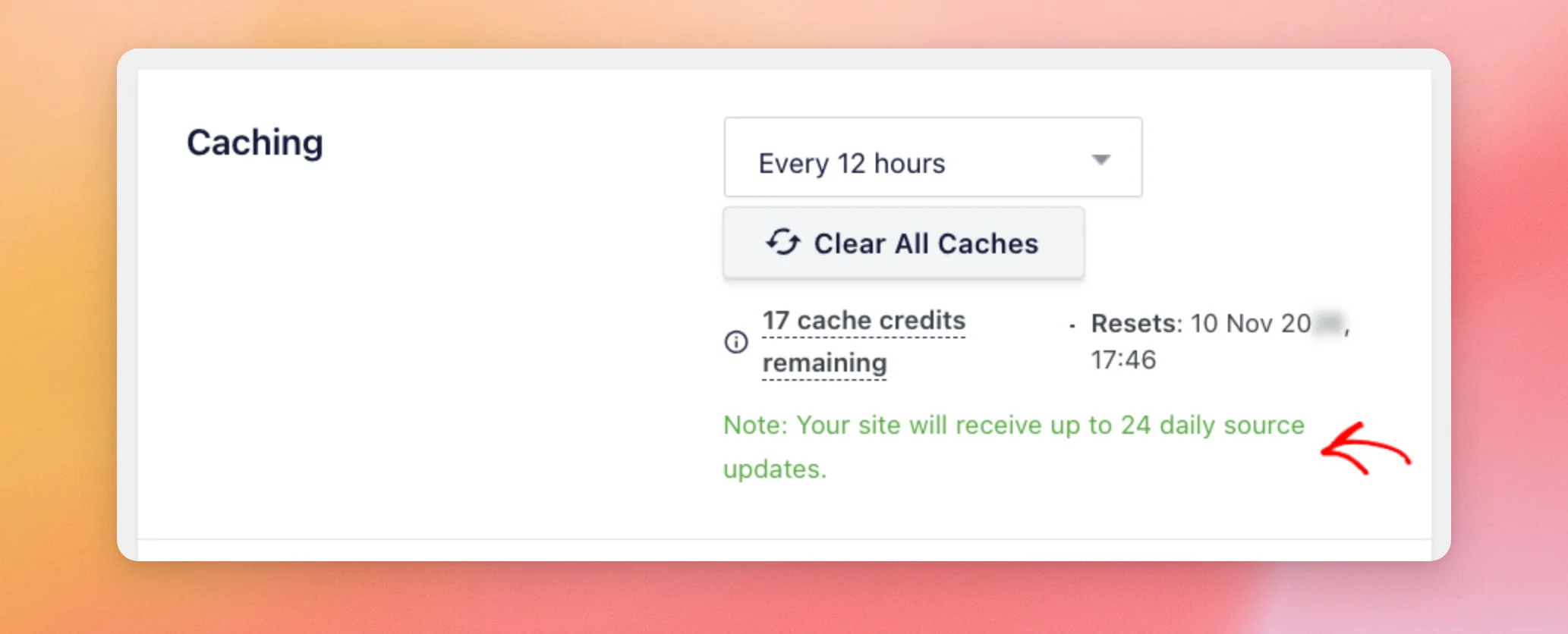
The limit applies per site. Every source on every feed shares it. For example, with 12 updates a day and 24 sources, each source updates about once every other day.
The plugin updates your feeds in the background every 2, 12, or 24 hours, based on the Caching list. If your site has only one source, that source can update as often as every 2 hours.
If you reach your limit, the plugin tells you that you’ve exceeded your daily feed update limit. You won’t see new posts in your feed until the limit resets. It resets automatically within the next 24 hours, with no action needed.
To make the most of your limit, remove any feeds or sources you no longer use. Your updates then go to the ones you display. If you need more updates, you can upgrade to a higher license level.
Using the Available Feed Types
The feed types you can use depend on your license level.
| Feed type | What it shows | License level |
|---|---|---|
| User Timeline | Posts from any X account | Basic or higher |
| Hashtag | Public posts with a specific hashtag | Plus or higher |
| Search | Posts that match specific search terms | Elite |
| Lists | Posts from any public X list | Elite |
Older Personal, Business, and Developer licenses include every feed type in this table. Home Timeline and Mentions feeds aren’t available.
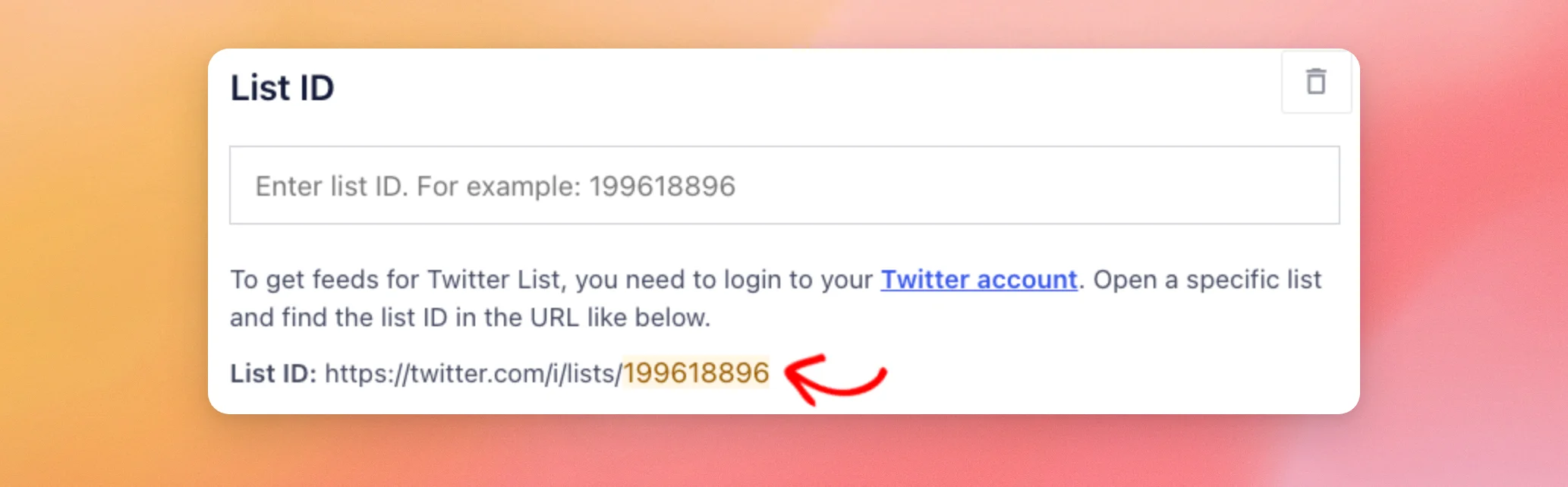
A Lists feed uses the ID of a public X list. The List ID is the number at the end of the list’s URL on X.
Loading More Posts
A new feed starts with only a few posts because of API limitations. The plugin retrieves 1 to 30 posts at first. More accumulate over time as your site saves the posts from each update.
The Load More button shows the posts your site has saved so far. When there are no more, your feed shows “That’s all! No more Tweets to load”.
Logged-in admins also see a note there about this limit. Your visitors don’t see that note.
If your feed shows “No tweets found for your selected feed sources”, check that posts that fit your settings exist on X. If they do, your feed may be waiting on a limit of our feed update system, like the daily update limit above.
To look up other messages, see our guide on API error messages.
Connecting Your Own X App
If you have an X developer account, you can connect your own X app instead of using our feed update system. Your feeds then get posts directly from X with your app’s keys.
To do this, use the Connect your Own App (V2) button in the Twitter Integration section, on the General tab of the plugin’s Settings page. The window that opens asks for a name and four values from your app: Consumer Key, Consumer Secret, Access Token, and Access Token Secret.
To get those values, see our guide on creating your own X app.
Free version
The free version has tighter limits because each update has a cost.
| What’s limited | Free version |
|---|---|
| Feeds | One active feed |
| Sources | One X account |
| Feed types | User Timeline |
| Updates | Once a week |
On the free version, your feed updates once a week. If you see a message that you’ve exceeded your feed update limit, it resets automatically within the next week, with no action needed.
If your site has more than one feed, the others show as disabled. Enabling one from the feed editor disables the rest.
The free version connects to our feed update system with a verified email address.
For the steps, see our guide on setting up the free version.
Posts build up over time on the free version too, as Loading More Posts explains.
You can also connect your own X app on the free version. With your own app connected, your feed follows the plugin’s regular update schedule instead of updating once a week.
To add more feeds, more feed types, and daily updates, you can upgrade to a paid license level.
To compare them, see our guide on the differences between the free and paid versions.
That’s it! You now know how the X API changes affect your feeds, what limits apply to your license level, and what the free version includes.
Next, see our guide on why your feed won’t show the latest Tweets if new posts take longer to appear than you expect.
Frequently Asked Questions
Below, we’ve answered some of the most common questions about these changes.
Do I need an X developer account to use the plugin?
No. By default, your posts come through our feed update system, so you don’t need one. If you have one, you can connect your own X app.
Does the daily update limit apply to each feed?
No. The limit applies to your whole site, and every source on every feed shares it. See How the Daily Update Limit Works above.
Can I show my Home Timeline or my Mentions in a feed?
No. Home Timeline and Mentions feeds aren’t available. See Using the Available Feed Types above for the feed types you can use.




