


 Social Wall
 Feed Analytics


Yes. Create as many YouTube feeds as you need and add each shortcode to a page or widget area.
Would you like to show more than 1 YouTube feed on your website, or even on the same page?
This guide walks through how to find each feed’s shortcode, add several feeds to the same page, and place a feed in a page template.
Before you get started, make sure YouTube Feed is installed and activated on your WordPress site. You also need at least 2 feeds created.
Here is what we will cover:
- Finding Your Feed Shortcodes
- Adding a Feed to a Page Template
- Playlists Showing the Same Videos
- Frequently Asked Questions
Finding Your Feed Shortcodes
You can show as many feeds as you need. Each feed has its own shortcode. To show several feeds, create a feed for each set of videos. Then, add each feed’s shortcode to the page or widget area where you want it to appear.
To see your feeds, go to YouTube Feed » All Feeds in your WordPress dashboard. The Shortcode column shows the shortcode for every feed.
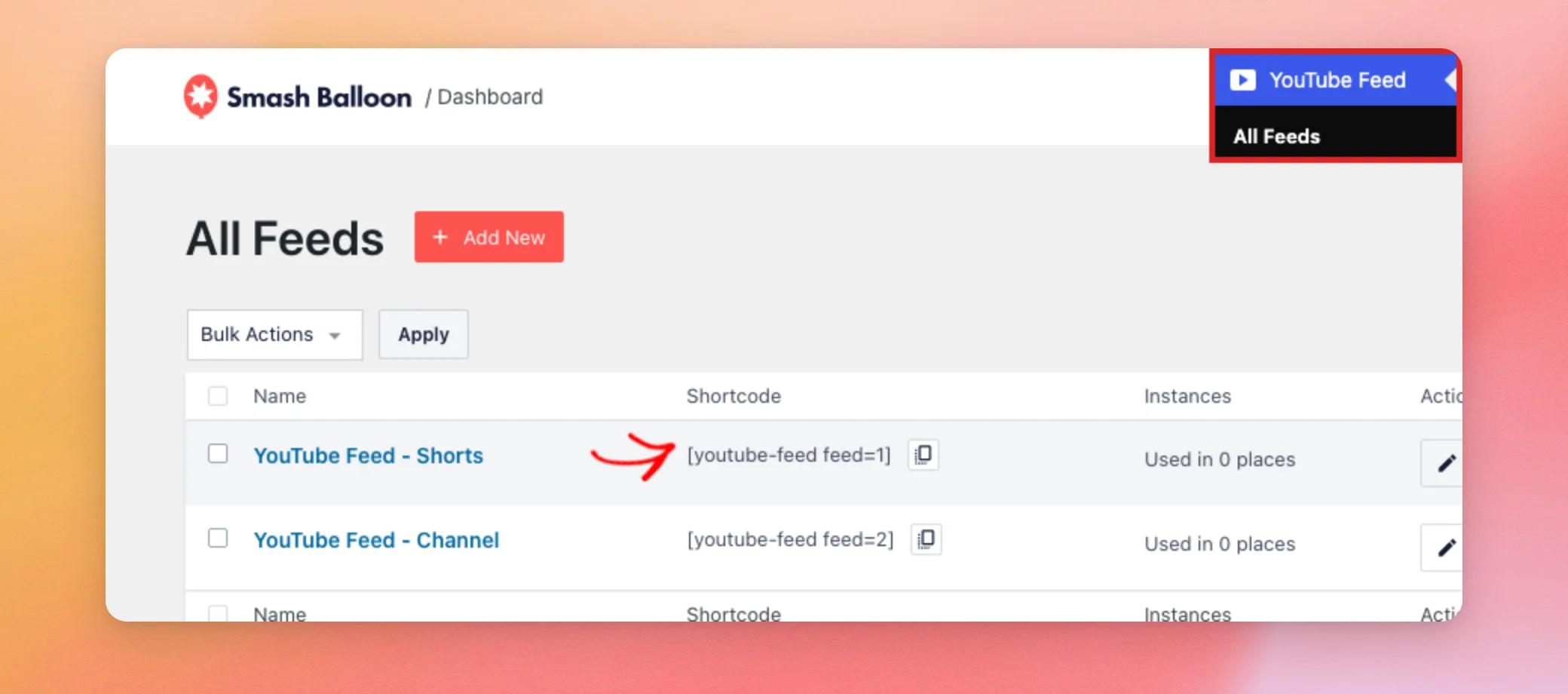
The number at the end of each shortcode is the feed’s ID.
To the right of the shortcode you want, click the Copy Shortcode button.
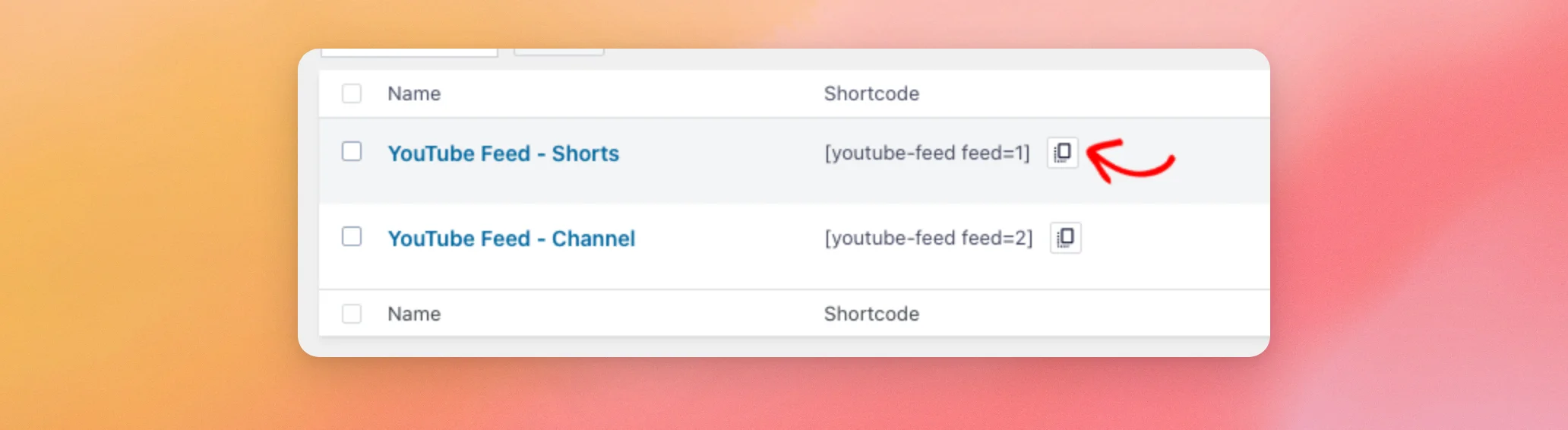
Then, paste the shortcode into the page, post, or widget area where you want that feed to appear. To show more than 1 feed on the same page, paste each feed’s shortcode into the page, one after the other.
If you’re new to shortcodes, see How to Add a Shortcode in WordPress for a step-by-step guide.
A shortcode is only one way to place a feed. The feed editor’s Embed button also lets you add a feed to a page or a widget.
If you would rather place a feed in your theme than in a page’s content, you can add it to a page template.
Adding a Feed to a Page Template
To show a feed in a theme template file instead of a page’s content, use the WordPress do_shortcode function. Add this line to the template file where you want the feed to appear:
<?php echo do_shortcode( '[[youtube-feed feed=1]]' ); ?>Replace 1 with the ID of your feed. This is the number at the end of its shortcode in the Shortcode column shown earlier.
The feed ID is also the first thing to check if 2 of your playlists show the same videos.
Playlists Showing the Same Videos
If 2 of your playlists show the same videos, they are most likely using the same feed. A shortcode shows the feed whose ID it contains. This means 2 shortcodes with the same ID show the same videos.
To show different playlists, create a separate Playlist feed for each one. Then, use each feed’s own shortcode. For example, your second playlist feed might use [[youtube-feed feed=3]], depending on how many feeds you have created.
Playlist feeds need a paid license. Like every feed, they also need a YouTube API key or a connected YouTube account.
For help creating a key, see our guide on creating and using a YouTube API key.
That’s it! You now know how to find your feeds’ shortcodes, show several feeds on one page, and place a feed in a page template. If you haven’t added an API key yet, our YouTube API key guide is the next step.
Frequently Asked Questions
Below, we’ve answered some of the most common questions about showing multiple YouTube feeds.
Where do I find the shortcode for a feed?
Each feed’s shortcode is in the Shortcode column on the YouTube Feed » All Feeds page. See Finding Your Feed Shortcodes above for how to copy it and add it to a page.
Why do I see “No connected account” where my feed should be?
The plugin shows the message “Error: No connected account.” when the site has no YouTube API key and no connected YouTube account yet. Only WordPress admins see this message, so visitors don’t see it. To show your videos, add an API key or connect a YouTube account, then reload the page.




